Companies
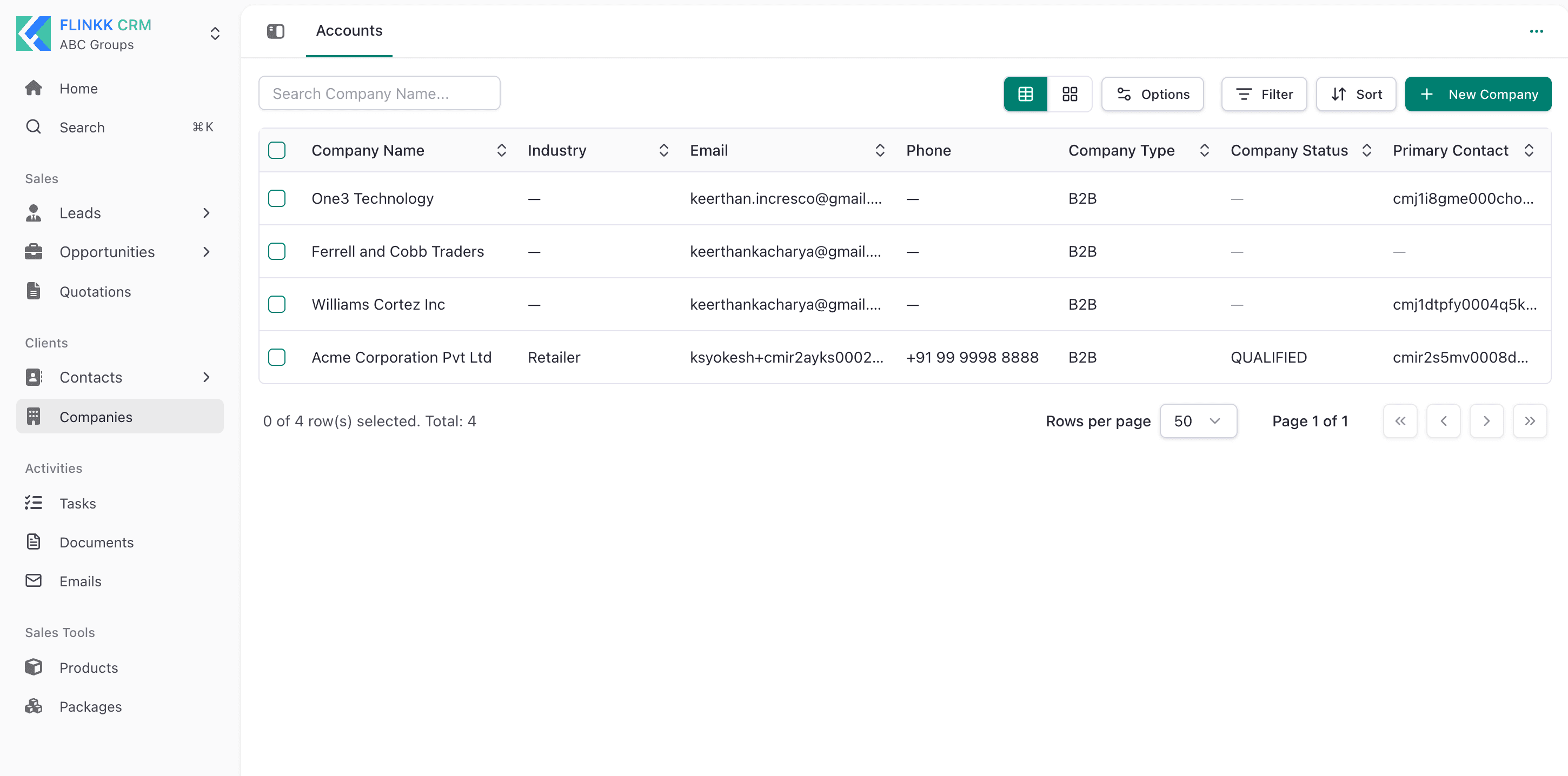
Companies (referred to as Accounts in the application interface) represent the businesses and organizations you interact with. This module serves as a central hub for managing organizational data, tracking B2B relationships, and maintaining comprehensive account details.
What are Companies?
Company records store essential data about your business customers—from basic contact details and billing addresses to revenue data and relationship history. While Contacts represent individuals, Companies represent entire organizations and link all related activities (opportunities, quotes, contacts) together.
Key Benefits:
- Centralize organizational data in a single source of truth.
- Link multiple Contacts, Opportunities, and Quotations to a single account.
- Segment your database by industry, type, and status for targeted outreach.
- Maintain accurate billing and shipping information for seamless transactions.
Key Features
Company Types
Classify organizations based on their relationship to your business:
- Customer: Active paying clients.
- Prospect: Potential customers in your sales pipeline.
- Partner: Business collaborators or affiliates.
- Vendor: Suppliers and service providers.
- Other: Any other organizational relationship.
Company Status Tracking
Monitor the lifecycle of each account:
- Cold: Inactive or early-stage leads.
- Qualified: Vetted accounts ready for engagement.
- Orphan: Accounts currently without an assigned owner.
Complete Business Profiles
Capture detailed information across several logical sections:
- Basic Information: Name, industry, website, employee count, and annual revenue.
- Contact & Management: Primary phone, email, regional classification, and primary contact person.
- Address Management: Dedicated sections for verified Billing and Shipping addresses.
- Tags: Flexible labels (e.g., "VIP", "Strategic") for custom categorization.
Company Workflow
1. Viewing Accounts
The Companies list view provides a high-level summary of your organizational database.
- Search & Filter: Quickly find accounts by name or filter by Type and Status.
- Key Columns: View Name, Email, Organization, and Type at a glance.
- Quick Actions: Edit or view details directly from the list.
2. Creating a New Company
To add a new organization, navigate to Sales → Companies and click + New Company.
Step 1: Basic Information
- Company Name (Required): The official name of the organization.
- Industry: The sector the company operates in.
- Company Type: Select from Customer, Prospect, etc.
- Company Status: Set the current relationship stage (Cold, Qualified, Orphan).
- Other details: Add website, employee count, and estimated revenue.
Step 2: Contact & Management
- Add the primary phone and email for the organization.
- Select a Primary Contact from your existing contact list.
- Specify the Region and add any relevant Tags.
Step 3: Address Details
- Billing Information: Enter the billing contact, country, and full address.
- Shipping Information: Either check "Same as billing information" or provide unique shipping details.
Step 4: Save
- Click Create Account to finalize the record.
3. Account Details & Tabs
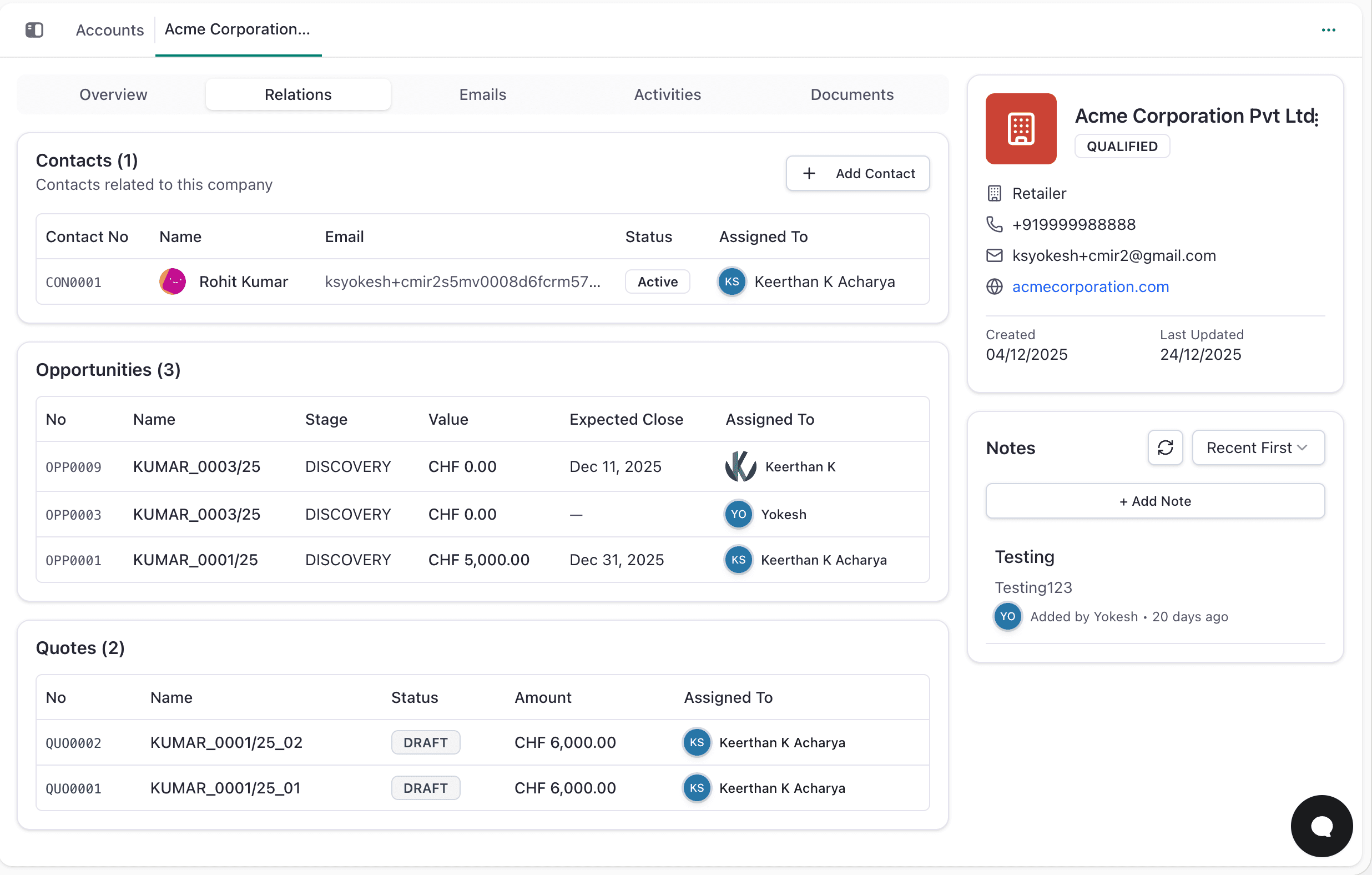 Double-click an account to access its full profile, organized into specialized tabs:
- Overview: A summary of all basic info and addresses.
- Relations: View all linked Contacts, Opportunities, and Quotations.
- Emails: Complete communication history with the organization.
- Activities: Timeline of tasks, logged calls, and system updates.
- Documents: Centralized storage for contracts, proposals, and other files.
Best Practices
- Link Contacts: Always associate individual contacts with their respective company to maintain a 360-degree view.
- Update Status: Regularly update the Company Status to ensure accurate pipeline reporting.
- Use Official Names: Use consistent, official naming conventions to avoid duplicate records.
- Tag Strategically: Use tags to highlight high-value accounts or specific service needs.