Email Templates
What is it?
Email Templates let you write an email once and send it many times. Instead of typing the same message over and over, you create a template and reuse it for leads, contacts, opportunities, tasks, or quotations.
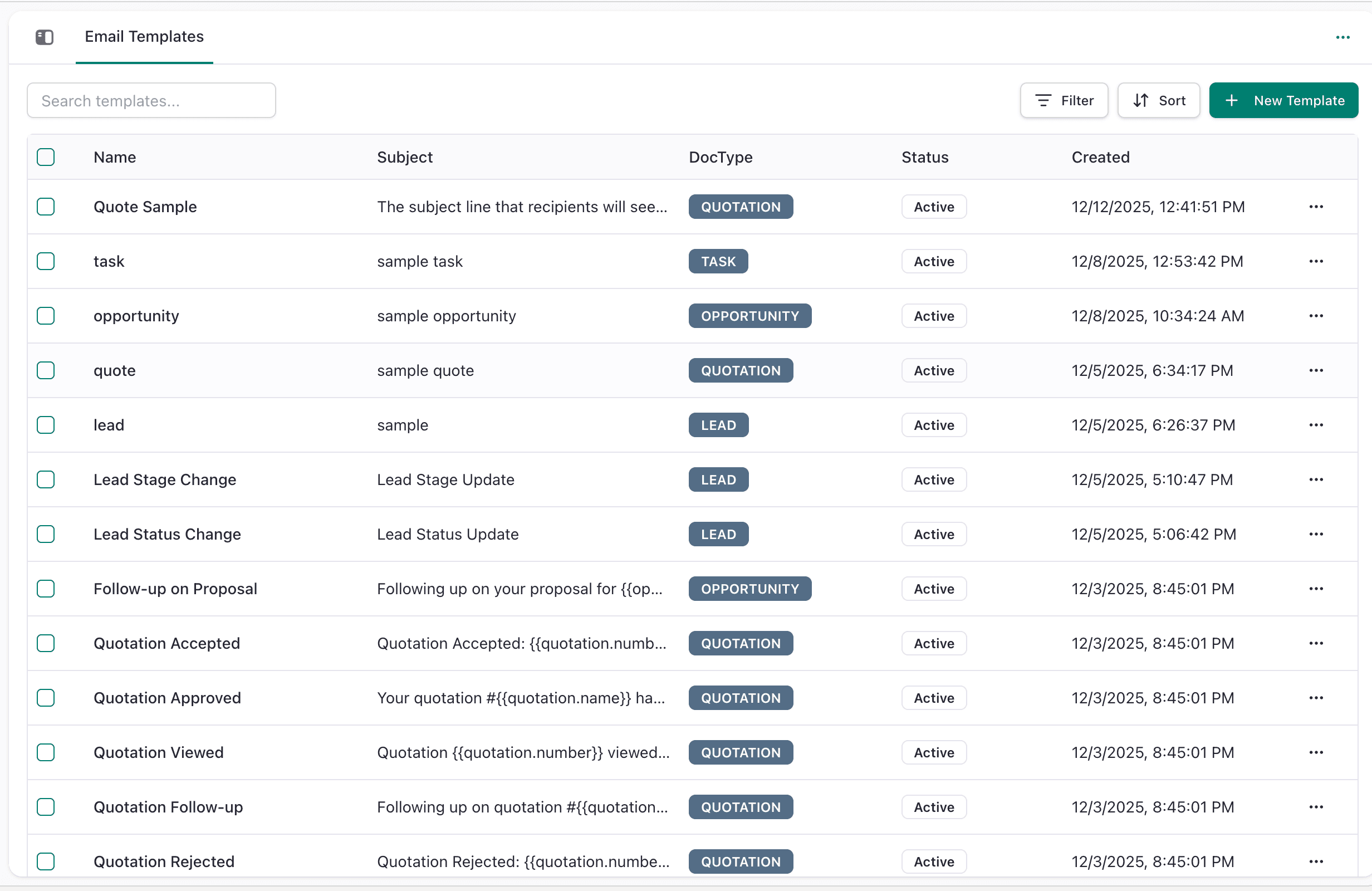
Why use Email Templates?
- Save Time - Write once, use unlimited times
- Stay Consistent - Everyone sends the same professional message
- Personalize Easily - Automatically fill in customer names and details
- No Mistakes - Pre-written templates are error-free
How to Get Started
Step 1: Go to Admin Center
In your Flinkk CRM, click Admin Center → Email Templates
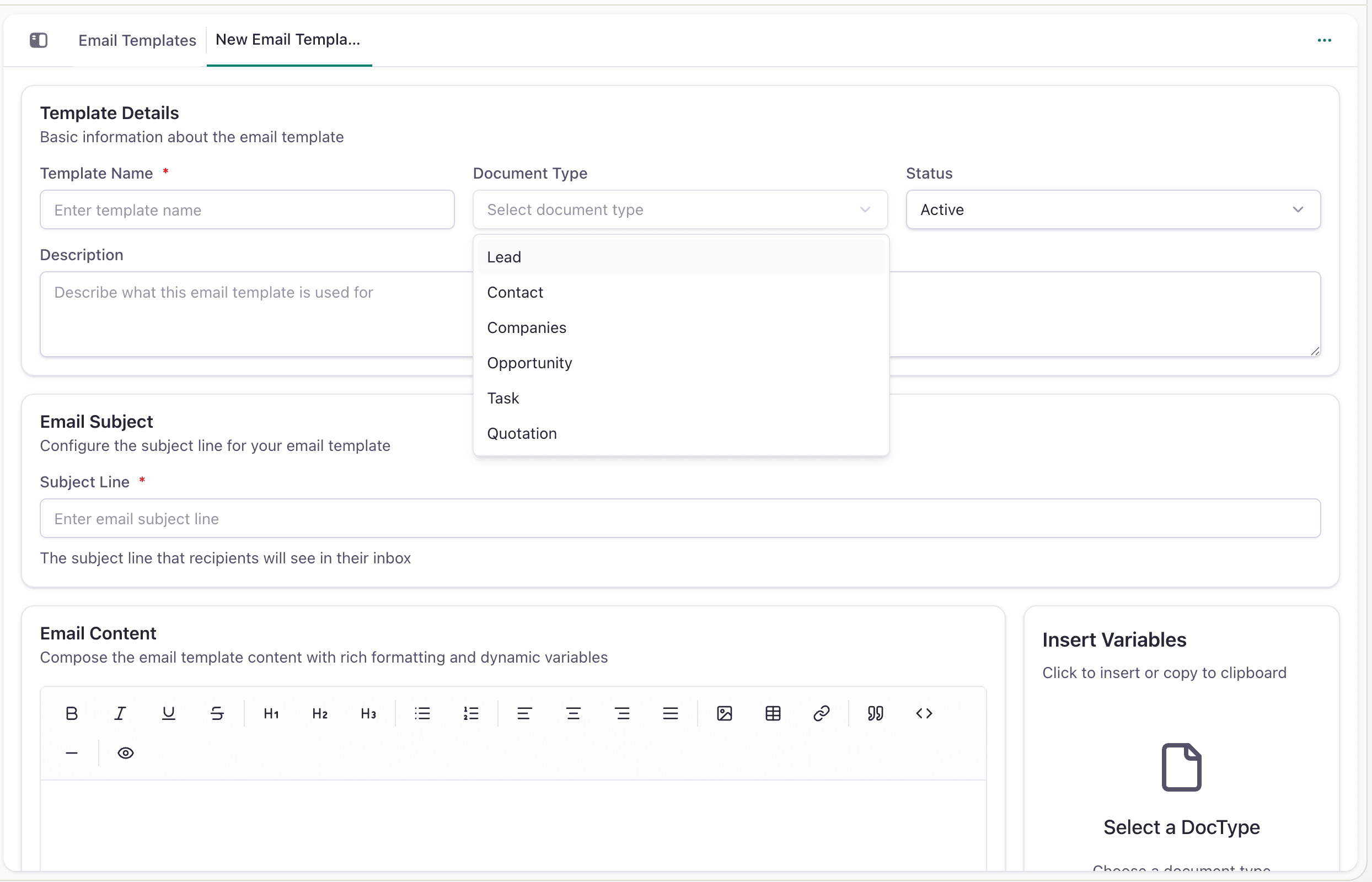
Step 2: Create a New Template
Click New Template and fill in:
- Template Name - What you'll call it (e.g., "Lead Welcome Email")
- Subject Line - What appears in the inbox
- DocType - Who gets this email (Lead, Contact, Opportunity, Task, or Quotation)
- Body - Your email message
Step 3: Add Personalization
Use merge fields to automatically fill in details from each record:
{{contact.firstName}}- Customer's first name{{contact.email}}- Customer's email{{opportunity.amount}}- Deal amount{{quotation.number}}- Quote number
Example:
Hi {{contact.firstName}},
Your opportunity "{{opportunity.title}}" is valued at ${{opportunity.amount}}.
Best regards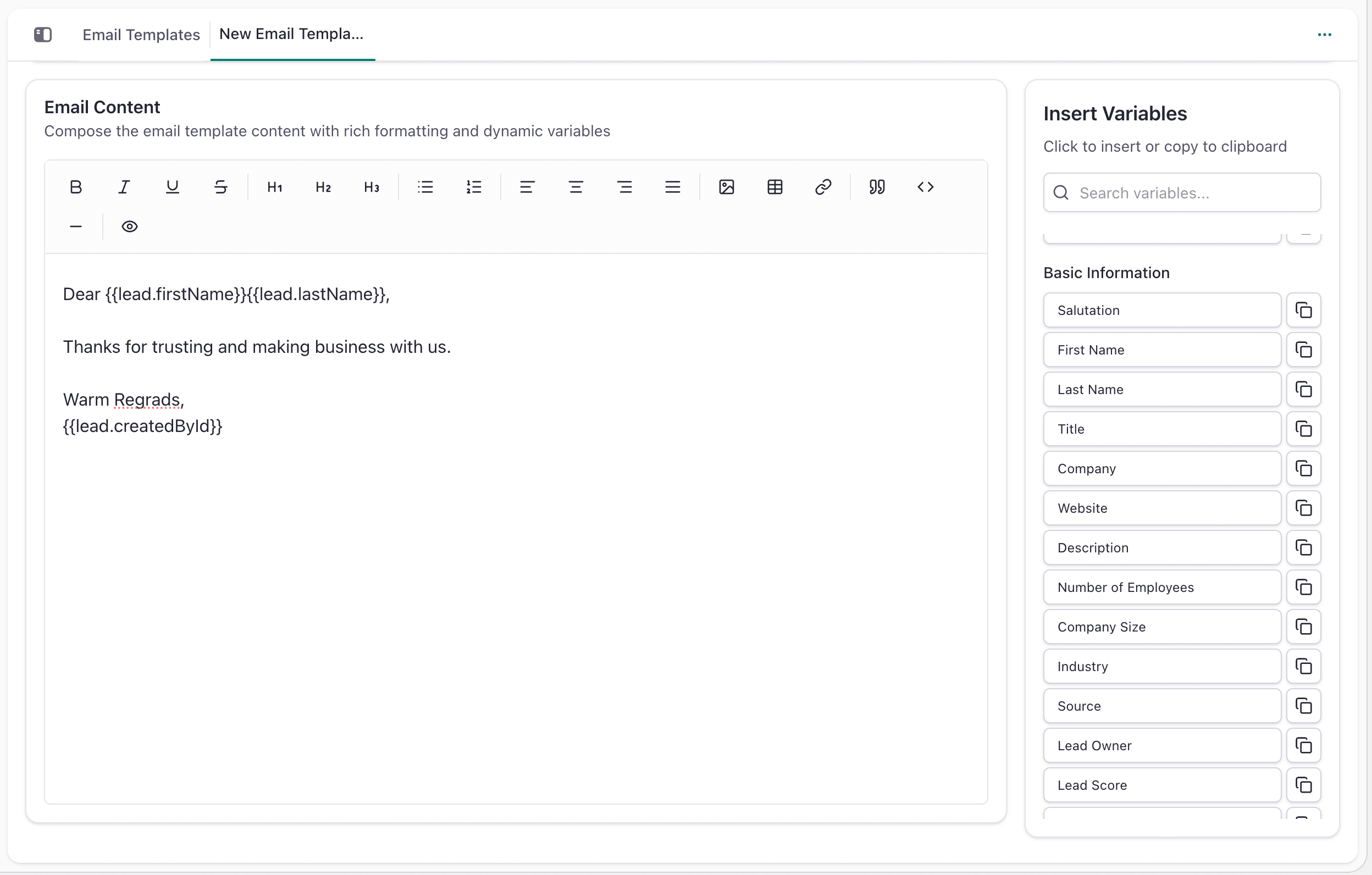
When you send this template, Flinkk automatically replaces the merge fields with real data.
Using Your Templates
- Open a record (Lead, Contact, Opportunity, etc.)
- Click Send Email
- Select your template
- Click Send
The email is sent with all your personalized information filled in automatically!
Tips & Tricks
Do This:
- Keep emails short (under 200 words)
- Always use merge fields for personalization
- Test templates before using them
- Give templates clear names
- Organize by type ("Lead - Welcome", "Opportunity - Follow-up")
Don't Do This:
- Write very long emails (people won't read them)
- Use "Hi there" instead of merge fields
- Forget to test before sending to customers
Common Questions
Q: Can I use the same template for different record types? A: No. Each template is linked to one type (Lead, Contact, etc.). Create separate templates for different types.
Q: What if a merge field is empty? A: The field name appears in the email. Make sure the record has all required information filled in before sending.
Q: Can I change a template after creating it? A: Yes! Edit it anytime. Changes apply to all future emails using that template.
Q: Can I delete a template? A: Yes. Click the template and select delete. Previously sent emails won't be affected.