Contacts
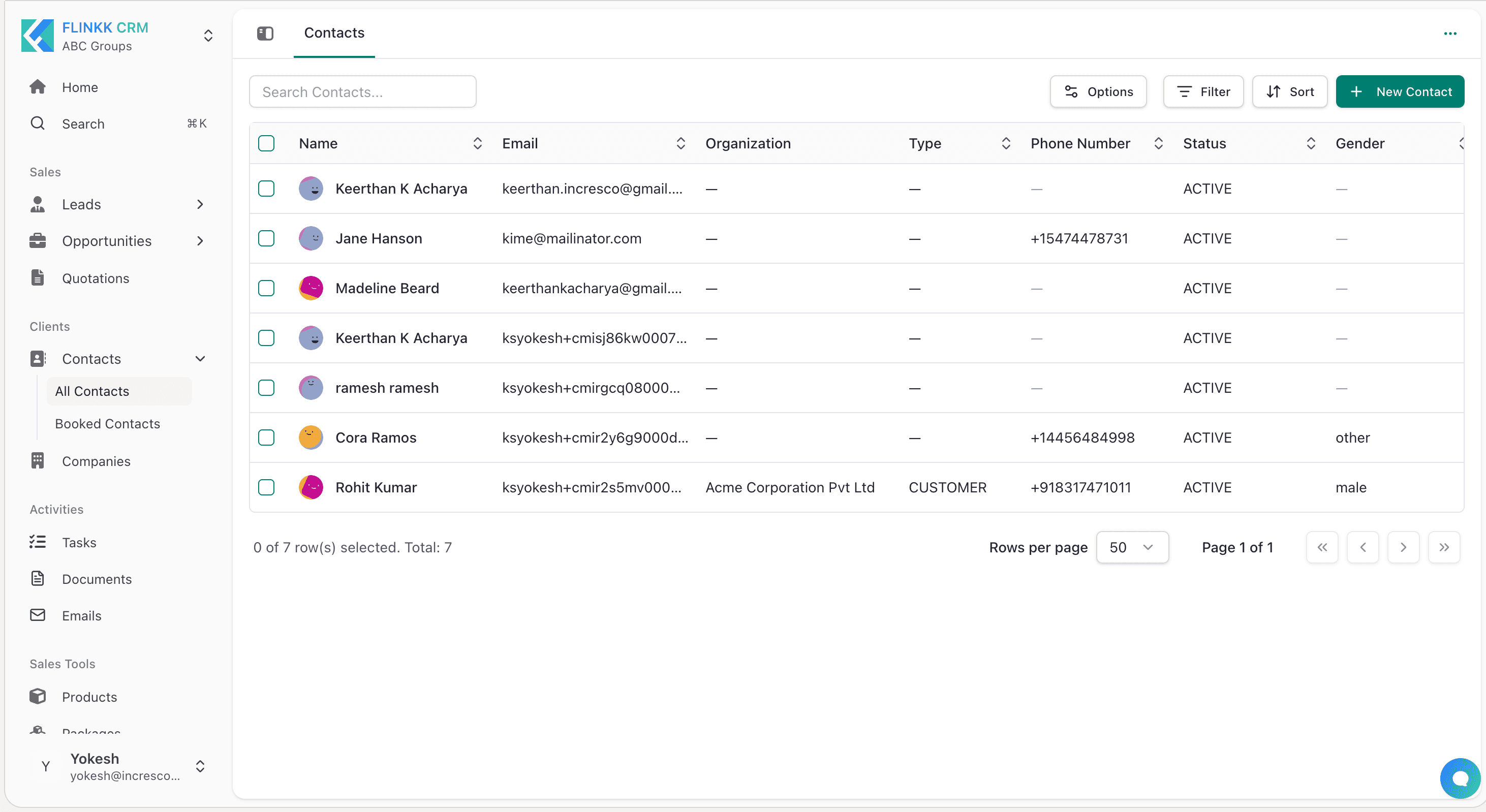
Contacts are at the heart of your CRM. They represent the individual people you interact with—customers, prospects, partners, and leads. Managing contacts effectively helps you build stronger relationships and drive sales success.
What are Contacts?
Contacts in Flinkk One store comprehensive information about the people you do business with. Each contact record includes:
- Personal Information: Name, gender, date of birth, status
- Contact Details: Emails, phone numbers, addresses
- Professional Information: Job title, company associations
- Relationships: Related opportunities, quotations, documents
- Communication History: Emails, calls, activities
- Custom Fields: Additional information specific to your business
Key Features
Relationship Management
- Link contacts to companies/organizations
- Associate opportunities and deals
- Track quotations and proposals
- Manage family and friends connections
Activity Tracking
- View all interactions in one timeline
- Track emails, calls, and meetings
- Log notes and important updates
- Monitor document exchanges
Organization & Filtering
- Create custom contact lists
- Filter by status, type, or custom criteria
- Save frequently used filter combinations
- Export filtered contact lists
Quick Actions
- Send emails directly from contact records
- Make calls with click-to-dial
- Create opportunities instantly
- Schedule follow-up tasks
Contact Details View
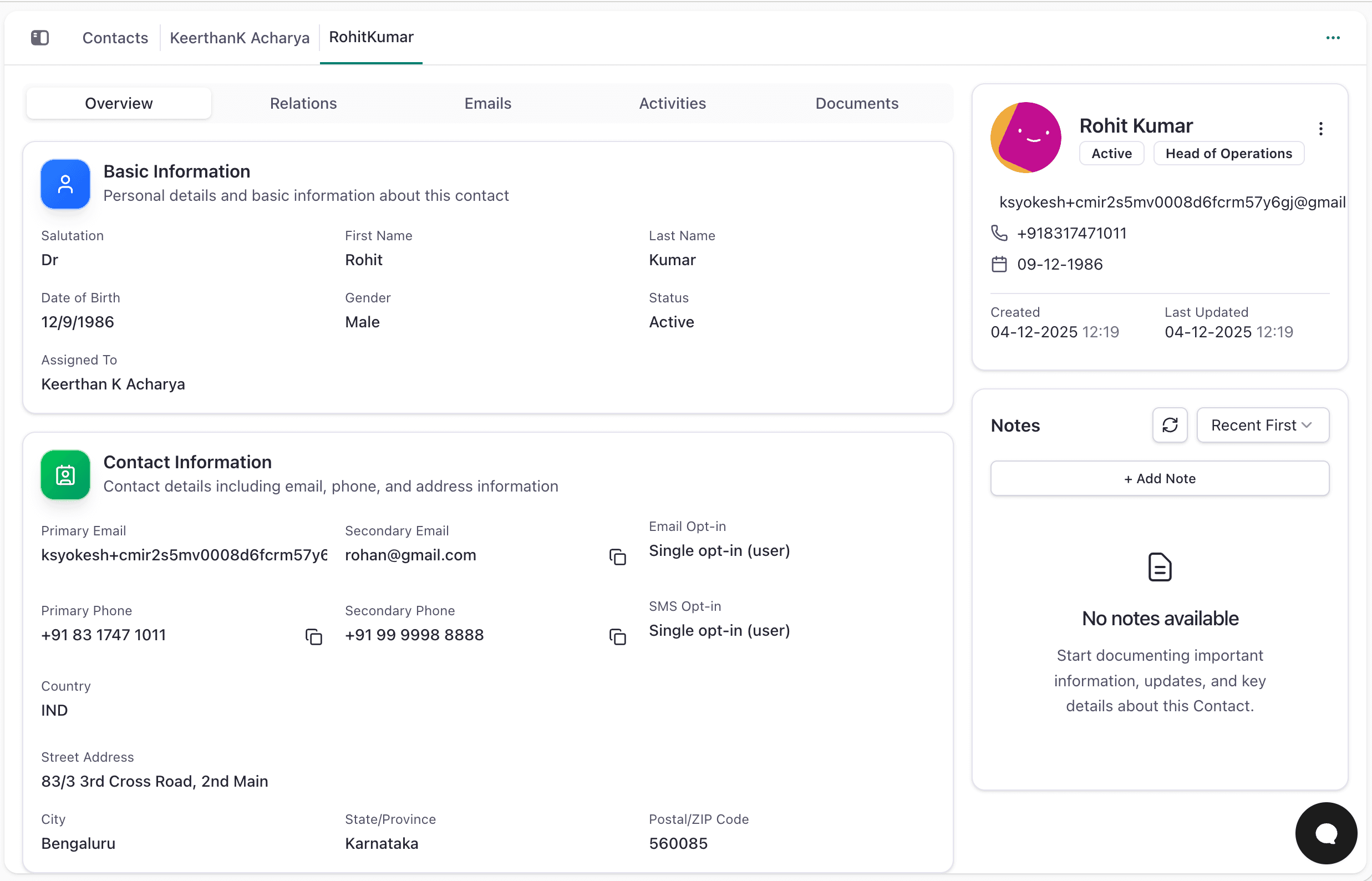
- Overview Tab: The main contact information view with Basic Information, Contact Information, Professional Information, and Notes sections
- Relations Tab: View all relationships including Opportunities, Quotations, and Friends & Family connections
- Emails Tab: Complete email communication history with threading and quick reply options
- Activities Tab: Chronological activity timeline showing calls, meetings, tasks, notes, and system events
- Documents Tab:
- Contracts and agreements
- Proposals and quotations
- Supporting documentation
- Uploaded files and attachments
Contact List Views
All Contacts
The default view showing all contacts in your system:
- Search: Find contacts by name, email, or phone
- Filter: Narrow down by status, type, or organization
- Sort: Order by name, creation date, or last activity
- Bulk Actions: Update multiple contacts simultaneously
Booked Contacts
A special filtered view showing contacts with confirmed bookings or reservations. Useful for:
- Tracking active customers
- Managing service delivery
- Following up on bookings
- Analyzing customer behavior
Creating Contacts
Manual Creation
- Navigate to Contacts
- Go to Sales → Contacts
- Click + New Contact
- Fill Basic Information
- Enter salutation, first name, last name
- Select gender (if relevant)
- Set contact status (Active, Inactive, VIP, etc.)
- Add Contact Details
- Primary email (required)
- Secondary email (optional)
- Primary phone number
- Secondary phone number
- Set email/SMS opt-in preferences
- Enter Address
- Street address
- City and state/province
- Postal/ZIP code
- Country
- Add Professional Information
- Job title or role
- Associated company
- Save
- Click Save to create the contact
Import Contacts
Bulk import contacts from CSV files, Excel files, or other CRM systems.
Best Practices
- Keep information current and accurate
- Link contacts to companies
- Log all interactions
- Use status fields effectively
- Respect privacy and communication preferences