Roles & Permissions
Define and manage user roles with granular permission control. Control what features and data each team member can access based on their role in the organization.
Overview
The Roles & Permissions section allows you to:
- View predefined system roles
- Create custom roles with specific permissions
- Manage permissions across CRM, Support, and Admin Center modules
- Assign roles to team members
- Control access at a granular level (View, Create, Edit, Delete)
Access location: Admin Center → Roles & Permissions
Key Concepts
What is Role-Based Access Control (RBAC)?
RBAC is a security model that controls which users can access which features. Instead of managing individual user permissions, you create roles and assign users to those roles.
Benefits:
- Simplified permission management
- Consistent access policies
- Easy to onboard new team members
- Reduces security risks
Permission Levels
Each role can have different permission levels for each module:
- View: Read-only access to records
- Create: Ability to create new records
- Edit: Ability to modify existing records
- Delete: Ability to remove records
- None: No access to this module
Modules
Flinkk One has three main module areas with controllable permissions:
- CRM Module: Sales and customer management features
- Support Module: Customer support and ticketing
- AdminCenter Module: System administration and settings
Predefined System Roles
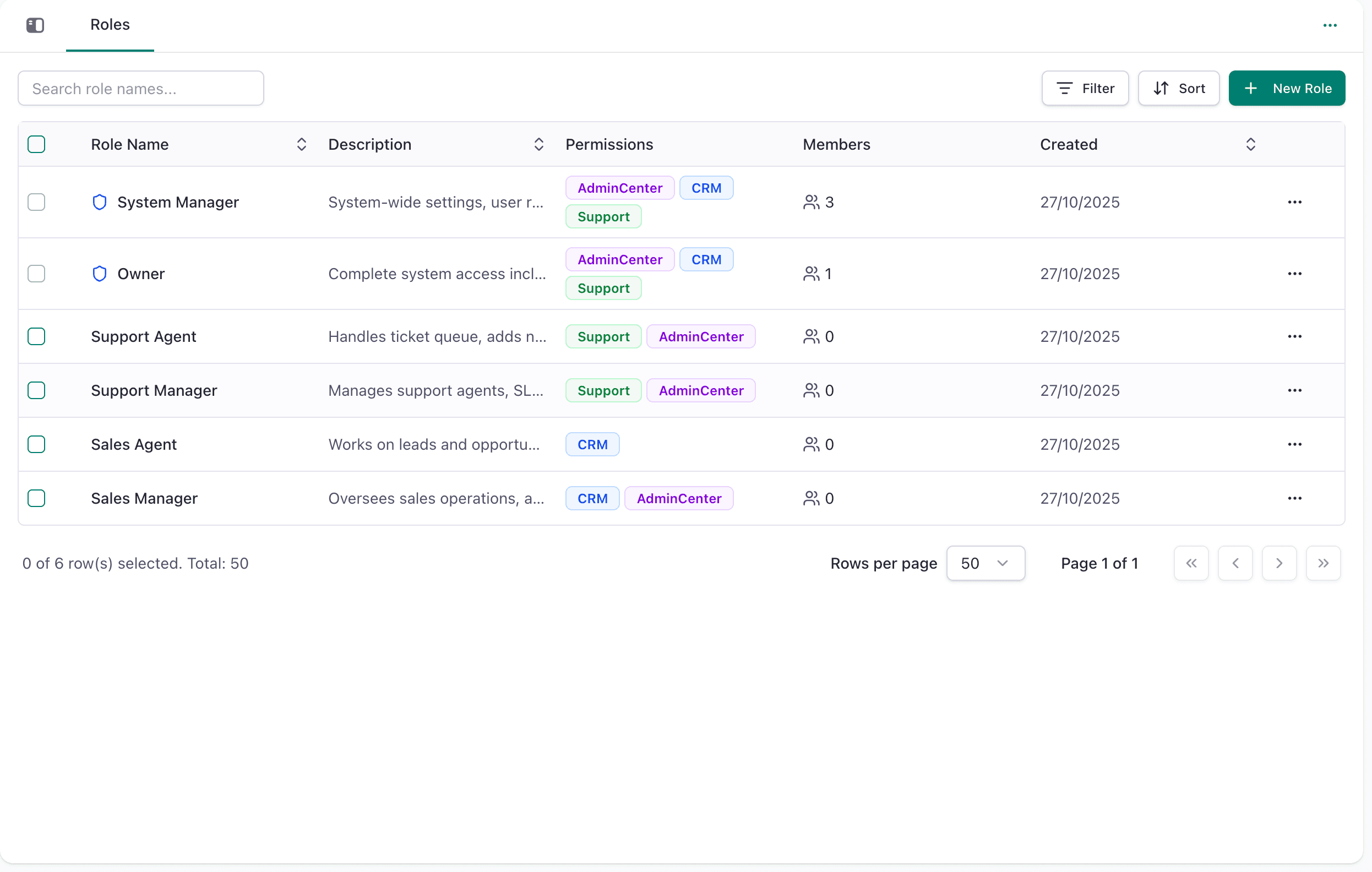
Flinkk One comes with six pre-built roles covering common organizational structures:
1. Owner
Purpose: Complete system ownership and access
Permissions:
- Full access to all modules (CRM, Support, AdminCenter)
- Complete system administration rights
- Can manage all members and roles
- Cannot be modified or deleted
- Only one Owner per organization
Use case: Organization founder or primary administrator
Member count in your system: 1
2. System Manager
Purpose: Full administrative access for managing system configuration
Permissions:
- All modules: View, Create, Edit, Delete
- System-wide administration rights
- Can manage general system settings
- Can manage most features
Use case: IT administrator or system administrator
Common tasks:
- Configure system settings
- Create custom fields
- Manage integrations
- Set up email configuration
- User administration support
3. Sales Agent
Purpose: Sales team access for lead and opportunity management
Permissions:
- CRM Module: Full access
- Support Module: Limited or no access
- AdminCenter Module: No access
Typical access:
- Manage leads
- Manage opportunities
- Create quotations
- Manage accounts and contacts
- Create tasks and notes
Use case: Sales representative or account executive
Workflow example:
- View assigned leads
- Create opportunities
- Generate quotations
- Close deals
4. Sales Manager
Purpose: Oversee sales operations and team
Permissions:
- CRM Module: Full access
- AdminCenter Module: Specific configuration access
- Support Module: Limited access
Additional capabilities:
- View all team members' records
- Create and manage teams
- Access sales reporting
- Manage team quotas
Use case: Sales team leader or regional manager
5. Support Agent
Purpose: Customer support and ticket management
Permissions:
- Support Module: Full access
- CRM Module: Limited access
- AdminCenter Module: No access
Typical access:
- Create and manage tickets
- Respond to customer inquiries
- Update ticket status
- Add internal notes
Use case: Customer support representative
Workflow example:
- Create support ticket from customer inquiry
- Update ticket status through resolution
- Close ticket when resolved
- Maintain ticket history
6. Support Manager
Purpose: Manage support operations
Permissions:
- Support Module: Full access
- AdminCenter Module: Specific configuration access
- CRM Module: Limited access
Additional capabilities:
- View all team tickets
- Manage ticket queues
- Create support categories
- View support reports
Use case: Support team leader or manager
Creating Custom Roles
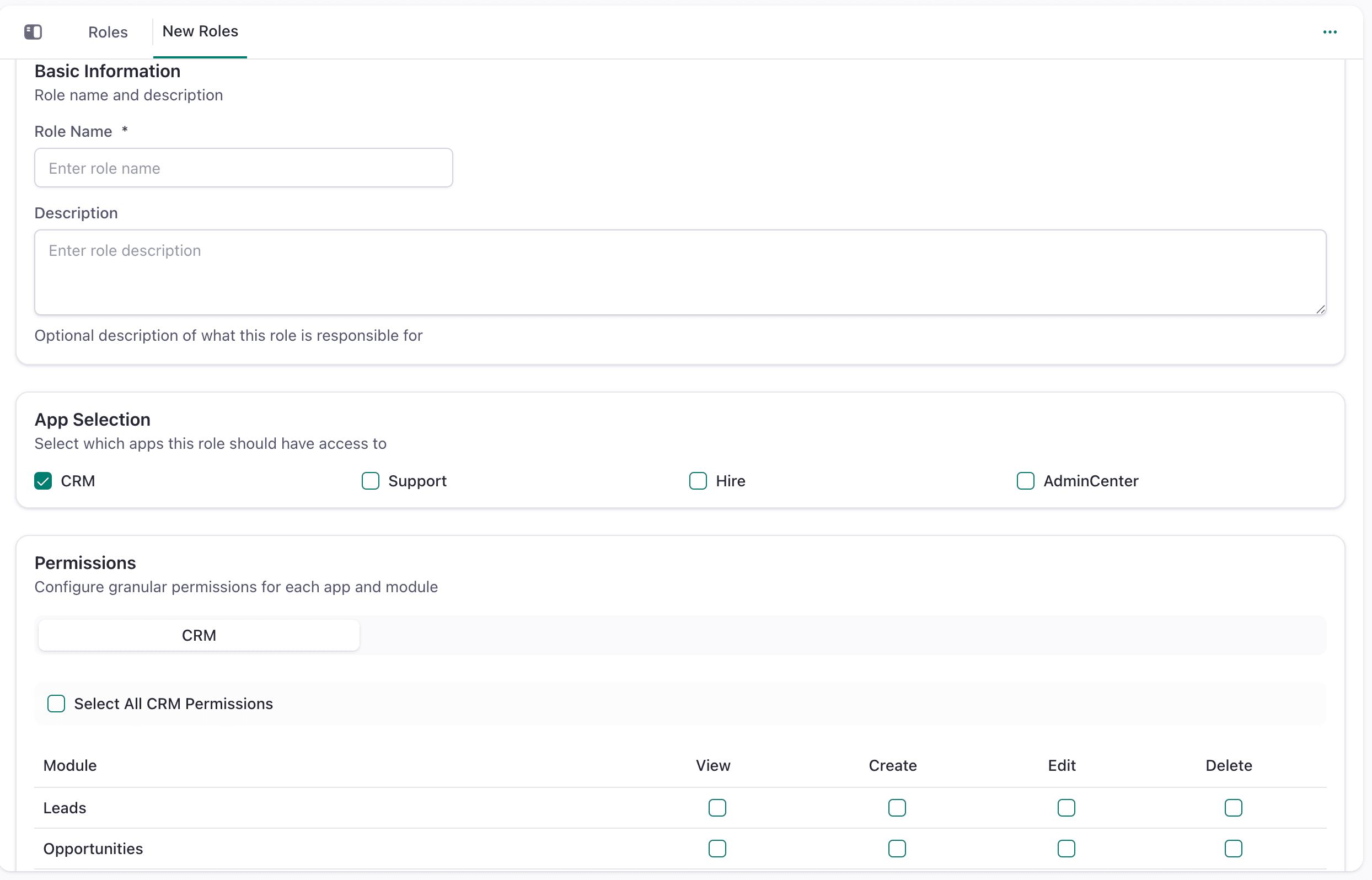
If the predefined roles don't meet your organization's specific needs, you can create custom roles with tailored permissions.
Permission Structure
Understanding Permission Combinations
Each role can have a custom combination of permissions. Here's how permissions work:
Module Access Levels
No Access
  ↓
View Only (Read)
  ↓
View + Create
  ↓
View + Create + Edit
  ↓
View + Create + Edit + Delete (Full)
Example: Sales Agent on CRM Module
A Sales Agent typically has:
- View: Can see all leads
- Create: Can create new leads
- Edit: Can edit lead details
- Delete: Cannot delete leads
Module Permissions Reference
CRM Module Permissions
This module controls access to sales and customer management features:
CRM includes access to:
- Leads (prospect management)
- Opportunities (deals)
- Contacts (individual customers)
- Companies (organizational accounts)
- Tasks (to-do items)
- Products (catalog items)
- Quotations (proposals)
- Packages (bundled offerings)
- Price Books (pricing configuration)
- Documents (file management)
- Campaigns (marketing campaigns)
- Notes and Activities
- Emails (communication history)
Typical access patterns:
- Owner: Full (View/Create/Edit/Delete)
- Sales Manager: Full (View/Create/Edit/Delete)
- Sales Agent: Full except Delete (View/Create/Edit)
- System Manager: Full (View/Create/Edit/Delete)
Support Module Permissions
This module controls access to customer support features:
Support includes access to:
- Support Tickets (customer issues)
- Ticket Categories (organization)
- Ticket Status (workflow management)
- Support Reports (analytics)
- Help Portal (knowledge base)
Typical access patterns:
- Support Manager: Full (View/Create/Edit/Delete)
- Support Agent: Full except Delete (View/Create/Edit)
- System Manager: Full (View/Create/Edit/Delete)
AdminCenter Module Permissions
This module controls access to system administration:
AdminCenter includes access to:
- Member management
- Role management
- General settings
- Configuration (currencies, tax, exchange rates)
- Templates (email, quote)
- Integrations
- Email configuration
- File management
- Notifications
- Field customization
Typical access patterns:
- Owner: Full access
- System Manager: Full access
- Others: Usually no access or limited
How to View Role Details
Viewing Role Information
- Navigate to Roles & Permissions (Admin Center → Roles & Permissions)
- Review the Role List - Shows: Role Name, Description, Permissions (module badges), Members count, Created date
- Click on a Role - Opens detailed view
- Review Permission Badges - Colored badges indicate module access
- View Member List - Bottom section shows all members with this role
Common Role Management Tasks
View All Sales Agents in Organization
- Go to Roles & Permissions
- Click on "Sales Agent" role
- View all members assigned to this role
- See their contact information and status
Understand a Member's Permissions
- Go to Members (Admin Center → Members)
- Find the member
- Check their assigned role
- Go to Roles & Permissions
- Click the assigned role to see full permission details
Check Who Has Admin Access
- Go to Roles & Permissions
- Review roles with AdminCenter access (Owner, System Manager)
- Click each role to see all members with admin access
Permission Best Practices
Principle of Least Privilege
- Assign the minimum permissions needed for a role
- Users should only access what they need
- Reduces accidental data exposure
- Improves system security
Regular Access Audits
- Periodically review member roles
- Remove access when team members change positions
- Update roles as responsibilities change
- Document role changes
Clear Role Definitions
- Each role should have a clear purpose
- Avoid creating unnecessary custom roles
- Use predefined roles when possible
- Document custom role permissions
Next Steps
After understanding roles and permissions, you may want to:
- Manage Members - Add team members to your organization
- Configure General Settings - Set up organization details
- Set up Email Configuration - Enable member notifications