Documents
Documents in Flinkk One CRM is a centralized repository for managing all files related to your sales activities. Upload documents from any module (Leads, Opportunities, Quotations, Contacts, Companies, Products, Packages) and they automatically sync to your Documents library for team-wide access.
Overview
Keep all customer-related files in one place instead of scattered across email attachments and folders. Documents uploaded in any CRM module automatically appear in the main Documents section, ensuring your entire team has instant access to what they need.
Key Benefits:
- Upload documents from Leads, Opportunities, Quotations, Contacts, Companies, Products, Packages
- Automatic synchronization to Documents library
- Search, filter, and organize all files centrally
- Track file ownership and upload dates
- Maintain version history and access history
How Documents Sync
Upload From Any Module
Documents uploaded in any of these modules automatically sync to your Documents library:
- Leads: Qualification documents, research files, meeting notes
- Opportunities: Proposals, quotes, scope of work, contracts
- Quotations: Pricing documents, terms & conditions, e-signatures
- Contacts: Agreements, contracts, personal documentation
- Companies: Master agreements, vendor documents, account files
- Products: Product datasheets, specifications, technical docs
- Packages: Bundle documentation, package overviews, pricing
Auto-Sync Workflow
- Open any module (Leads, Opportunity, Contact, etc.)
- Click the Documents tab
- Click Upload Document button
- Select or drag files to upload
- Document automatically appears in:
- The module's Documents tab (linked to that record)
- Main Documents library (visible to all team members)
- Linked records show "Opportunity (ID...)", "Contact (ID...)" etc.
Managing Documents
Documents Library
Access via Activities → Documents in the sidebar.
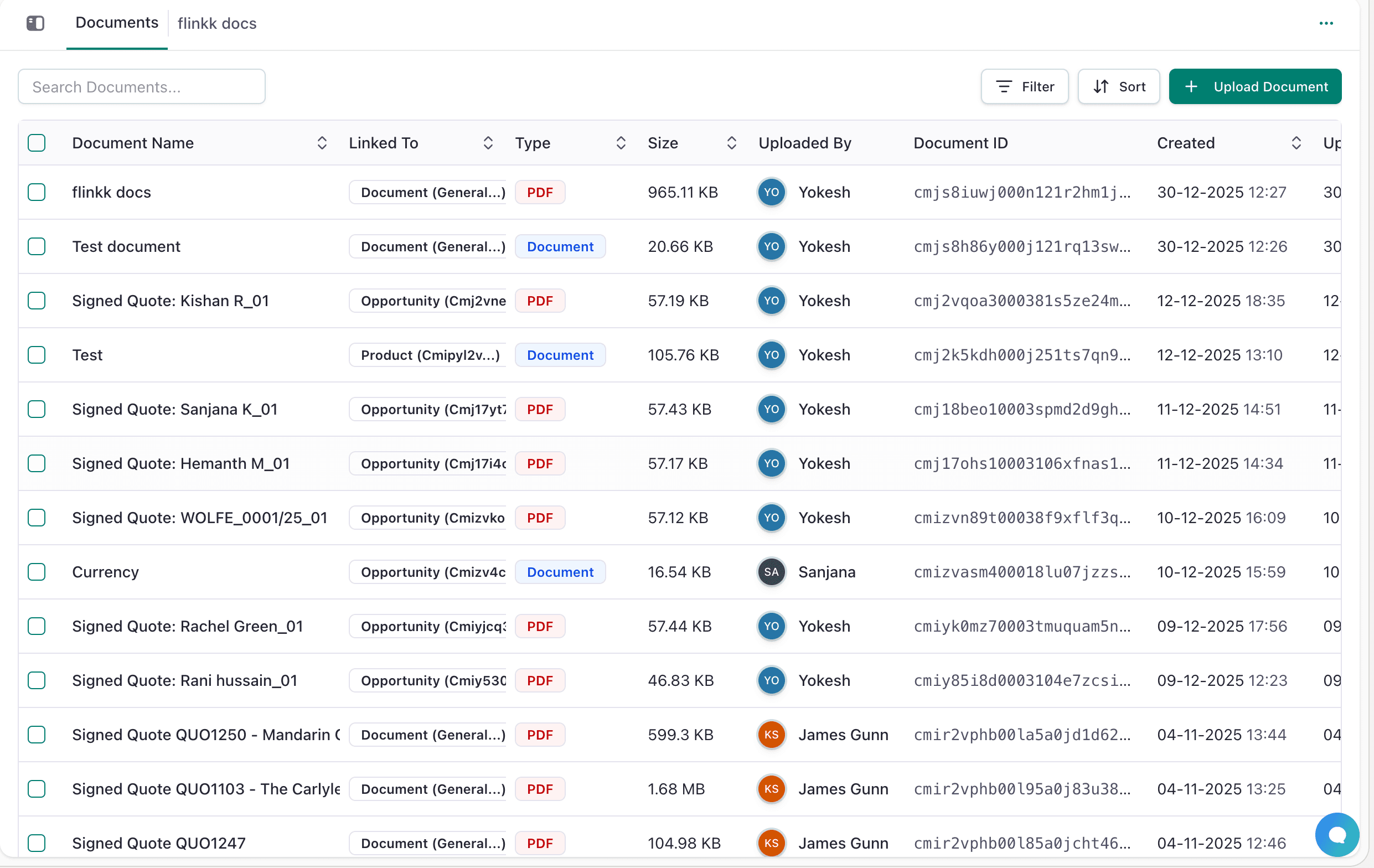
Features:
- Search: Find files by name or keyword
- Filter: Filter by document type (PDF, DOCX, XLSX), linked record type, uploader
- Sort: Order by name, size, date, or type
- Upload: Add new documents quickly
- Download: Get files to your computer
- Delete: Remove unwanted files (permanent)
Table Columns:
- Document Name: Click to download
- Linked To: Shows what it's connected to ("Opportunity (Cmj2vne...)", "Contact (Cmj3...)", "Document (General...)")
- Type: File format with color badge (PDF, DOCX, XLSX, etc.)
- Size: File size in KB or MB
- Uploaded By: Team member who uploaded it
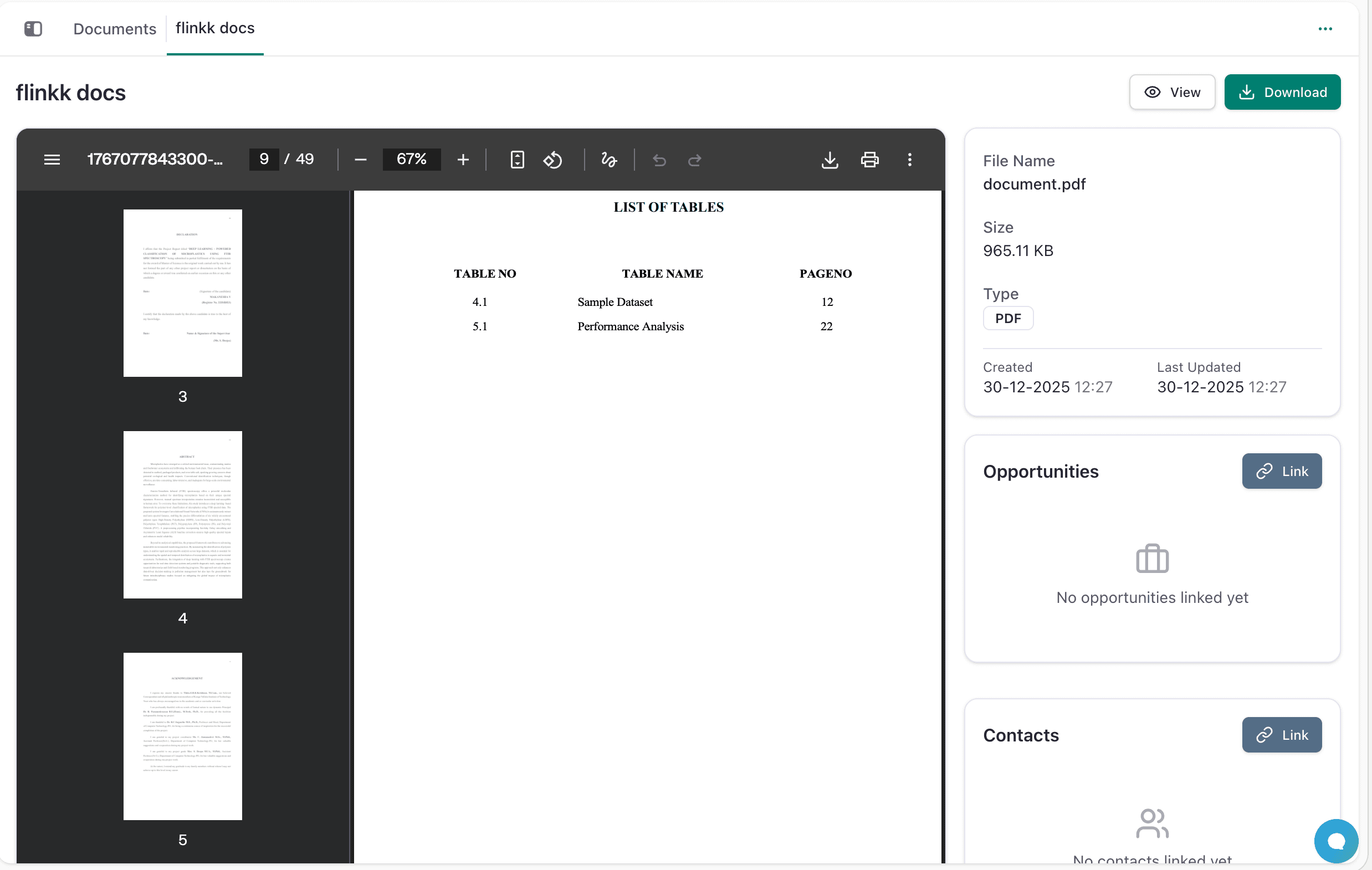
Upload From Module
In any Lead, Opportunity, Quotation, Contact, Company, Product, or Package:
- Open the record details
- Find the Documents tab
- Click Upload Document
- Drag files or click to browse
- Enter Document Name (optional - auto-fills from filename)
- Click Upload
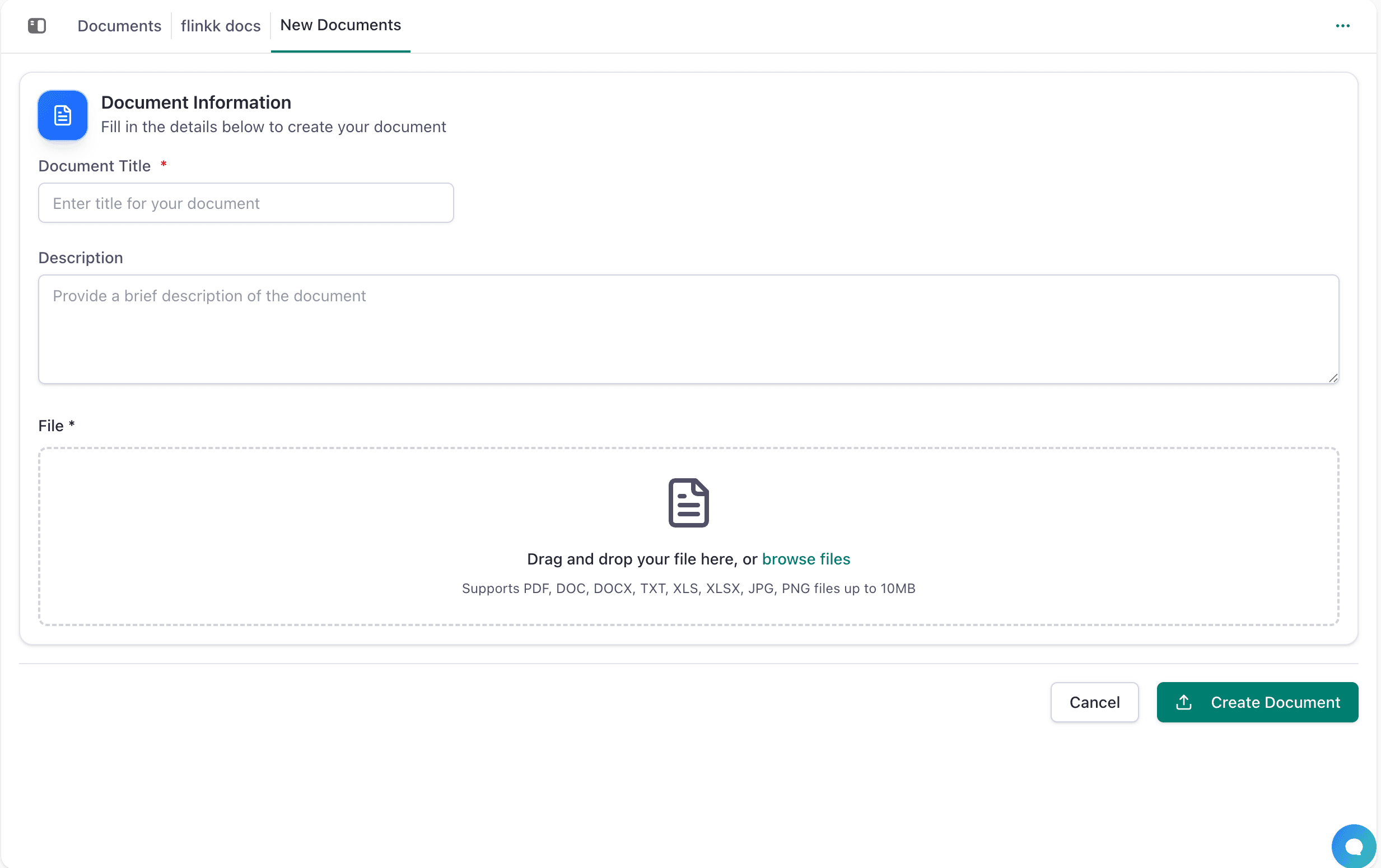
Document immediately appears in:
- That record's Documents tab (showing it's linked)
- Main Documents library (with linked record shown)
Document Organization
Linked Documents
Each document shows what it's linked to:
- Document (General...): Not linked to a specific record
- Opportunity (Cmj2vne...): Linked to that opportunity
- Contact (Cmj3abc...): Linked to that contact
- Company (Acme...): Linked to that company
- Product (Widget...): Linked to that product
- Package (Managed...): Linked to that package
- Lead (Erica S): Linked to that lead
Best Practices
- Upload from the module: When in an Opportunity, upload its documents from the Opportunity's Documents tab
- Use descriptive names: "Acme Corp - Signed Quote - Nov 2025.pdf" not "Document1.pdf"
- Link everything: All documents should be linked to at least one record
- Organize by type:
- Contracts → Link to Company
- Proposals/Quotes → Link to Opportunity
- Agreements → Link to Contact
- Product docs → Link to Product
- Package info → Link to Package
- Remove duplicates: Delete old versions after new ones are uploaded
- Use consistent naming: Team should follow same naming convention
File Management
- Supported File Types: PDF, DOCX, XLSX, PPTX, images (JPG, PNG), text files, and more. Check your plan for size limits
- Download Files: Click document name in the library to download to your computer
- Delete Documents: Select document(s) and click delete. Deletion is permanent and removes from all linked records
- Version Control: Use filename versioning: "Contract v1", "Contract v2 Final" instead of overwriting files
Syncing FAQ
Q: Do documents auto-sync instantly? A: Yes, documents uploaded in any module appear in the Documents library immediately.
Q: Can one document be linked to multiple records? A: Yes. A signed contract can be linked to both the Company and the Opportunity.
Q: What happens to documents when I delete a record? A: The document remains in the Documents library but the link to that record is removed.
Q: Can customers see documents I upload? A: No, documents are internal to your CRM by default. External sharing requires manual download and sending.
Q: Can I edit documents in Flinkk One? A: Download, edit locally, then re-upload as a new version.
Next Steps
- Manage Leads - Upload documents to lead records
- Track Opportunities - Store proposals and quotes
- Manage Contacts - Save contact agreements
- Manage Companies - Store master agreements
- Manage Products - Upload product documentation
- Manage Packages - Add bundle documentation