Quotations for Inventory-Based Organisations
Quotations for inventory-based organisations guide you through building a complete holiday proposal. The interface combines traveller details, hotel booking, meal plans, and pricing all in one seamless flow.
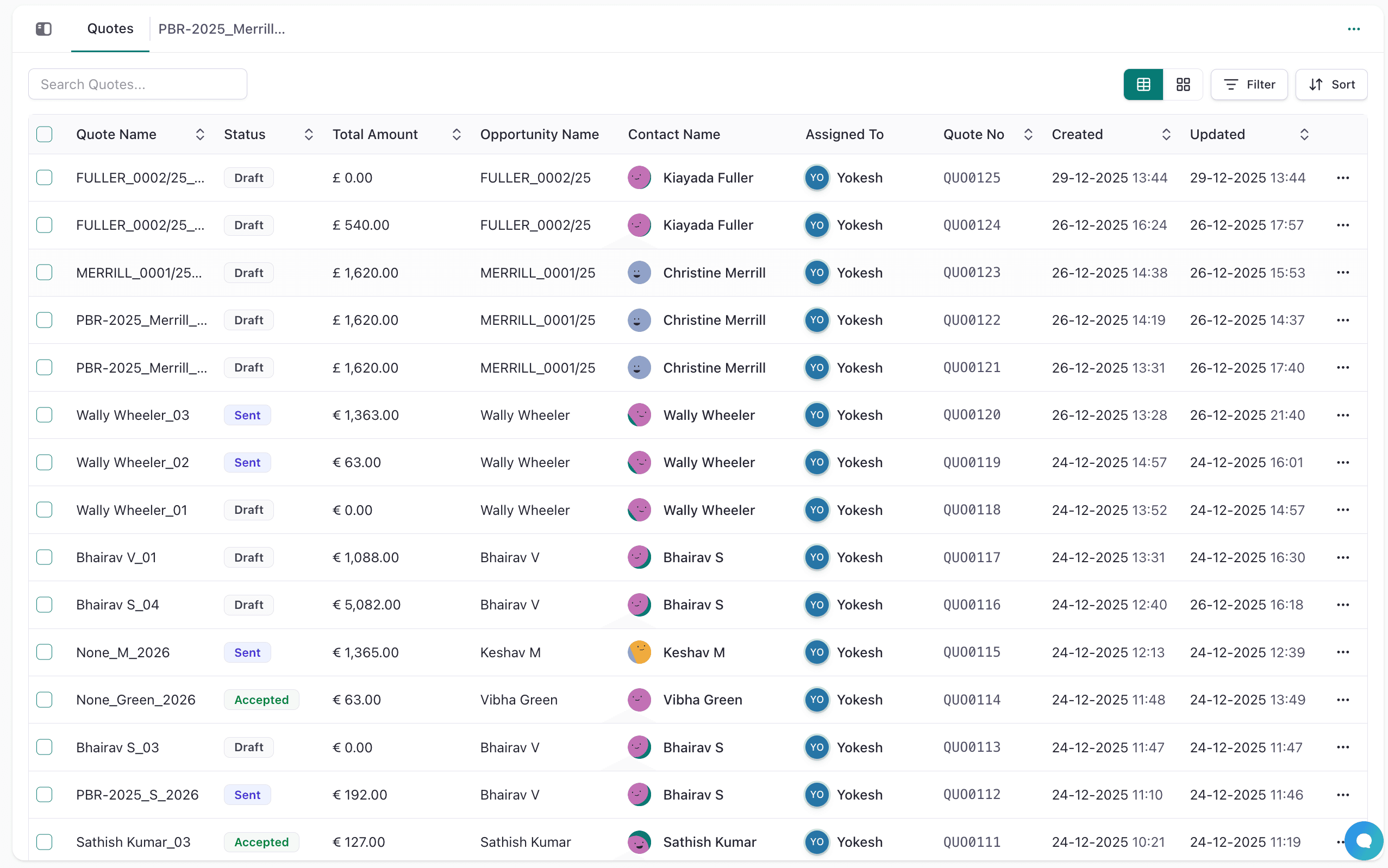
Main quotation sections
The quotation form is organised into logical steps:
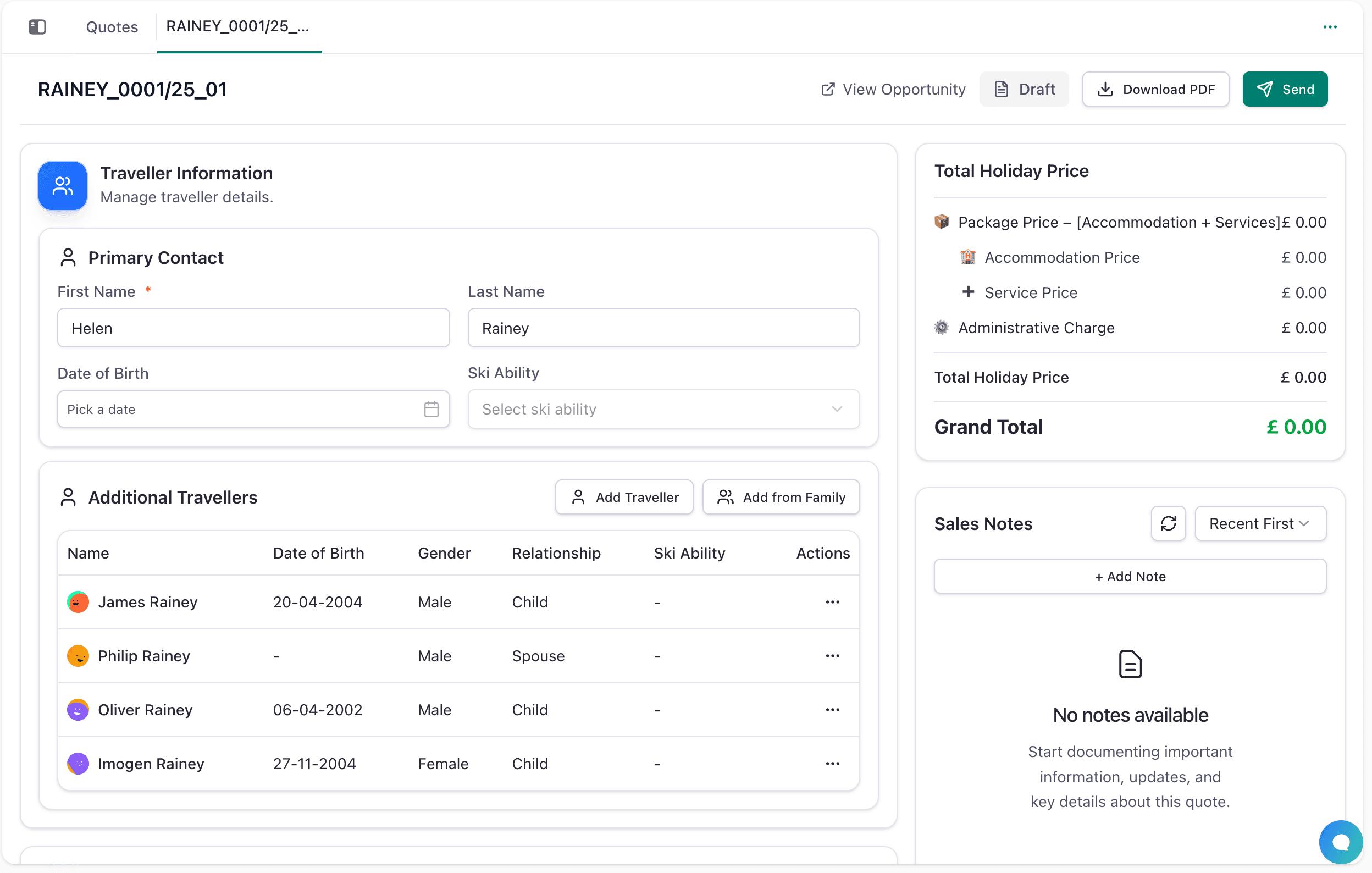
1. Traveller Information
- Add primary traveller details (name, date of birth, ski ability).
- Add additional travellers and their relationships (friends, family members).
- Keep a summary of total number of travellers for the trip.
2. Travel Dates
- Set check-in and check-out dates for the holiday.
- These dates drive availability in the room search.
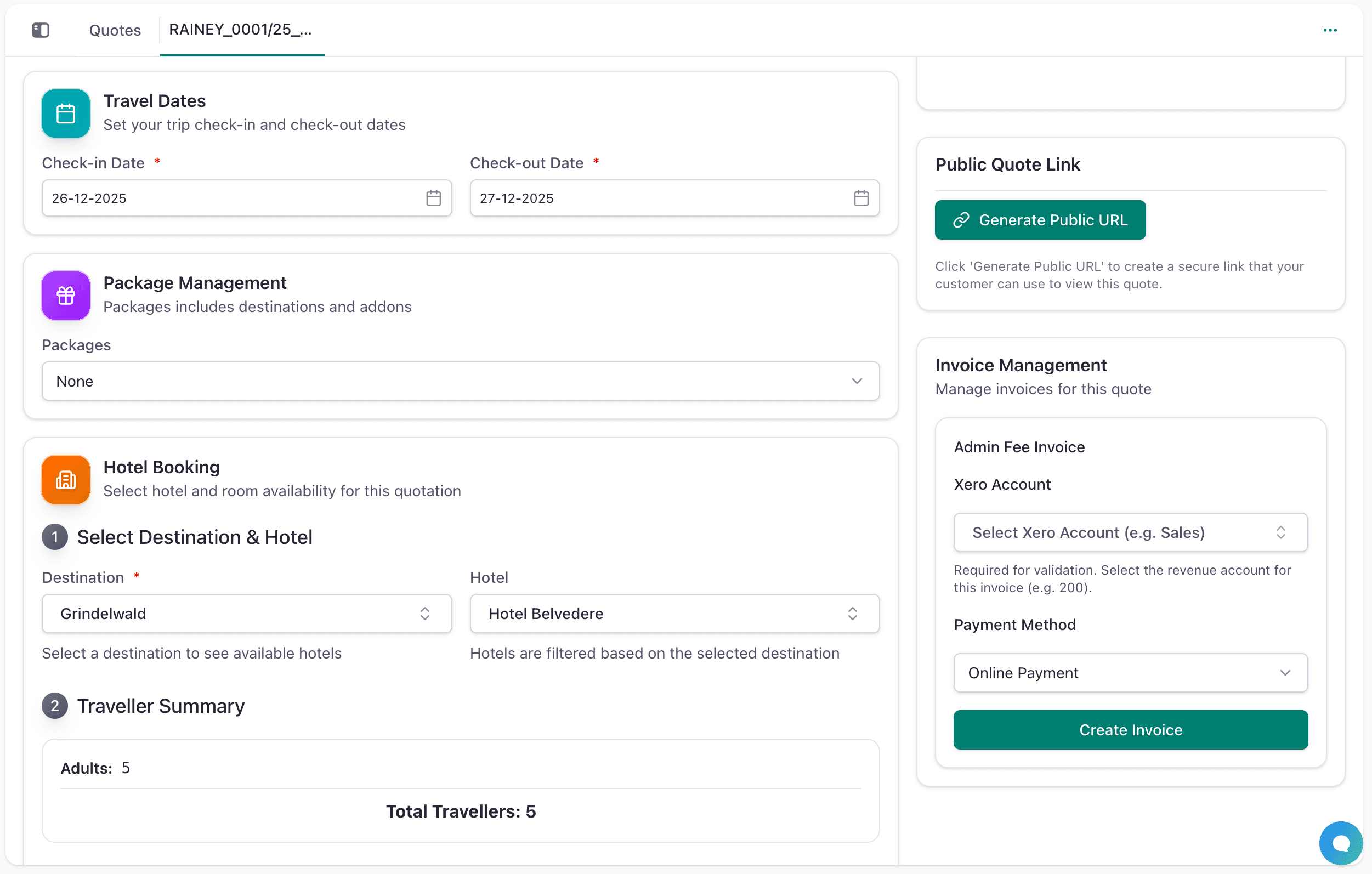
3. Package Management
- Select a pre-configured package if available (includes destinations and add-ons).
- Helps structure multi-destination trips.
- Packages are listed based on the travel dates
4. Hotel Booking
This is the core inventory integration:
Select Destination & Hotel:
- Choose destination from a dropdown; hotels are filtered to that location.
- Select the specific hotel for this leg of the trip.
- Hotels are filtered based on destination selection.
Traveller Summary:
- Shows total number of adults and travellers for room selection.
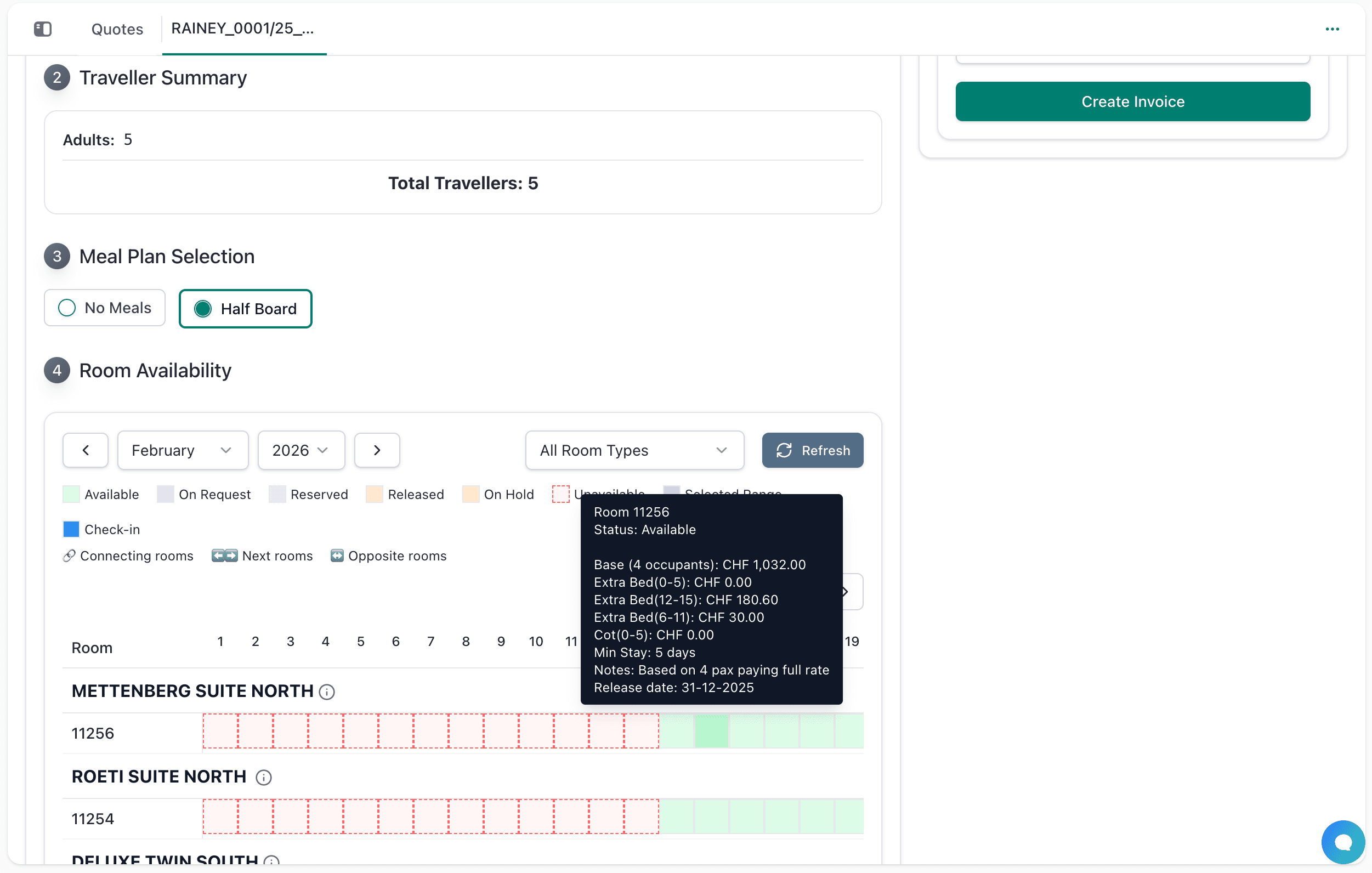
Meal Plan Selection:
- Choose meal basis (e.g., No Meals, Half Board, Full Board).
Room Availability:
- A calendar grid shows room status by date (Available, On Request, Reserved, Unavailable, etc.).
- Grouped by room type (2 Bedroom Superior, 3 Bedroom Deluxe, etc.).
- Click on available dates to select rooms for this quotation.
- View status legend (green = available, blue = on request, red = unavailable).
- Filter by room type, month, and year.
- On Request Rooms: For rooms marked as "On Request", you can edit and customize the prices directly in the quotation to provide specific rates based on client negotiations.
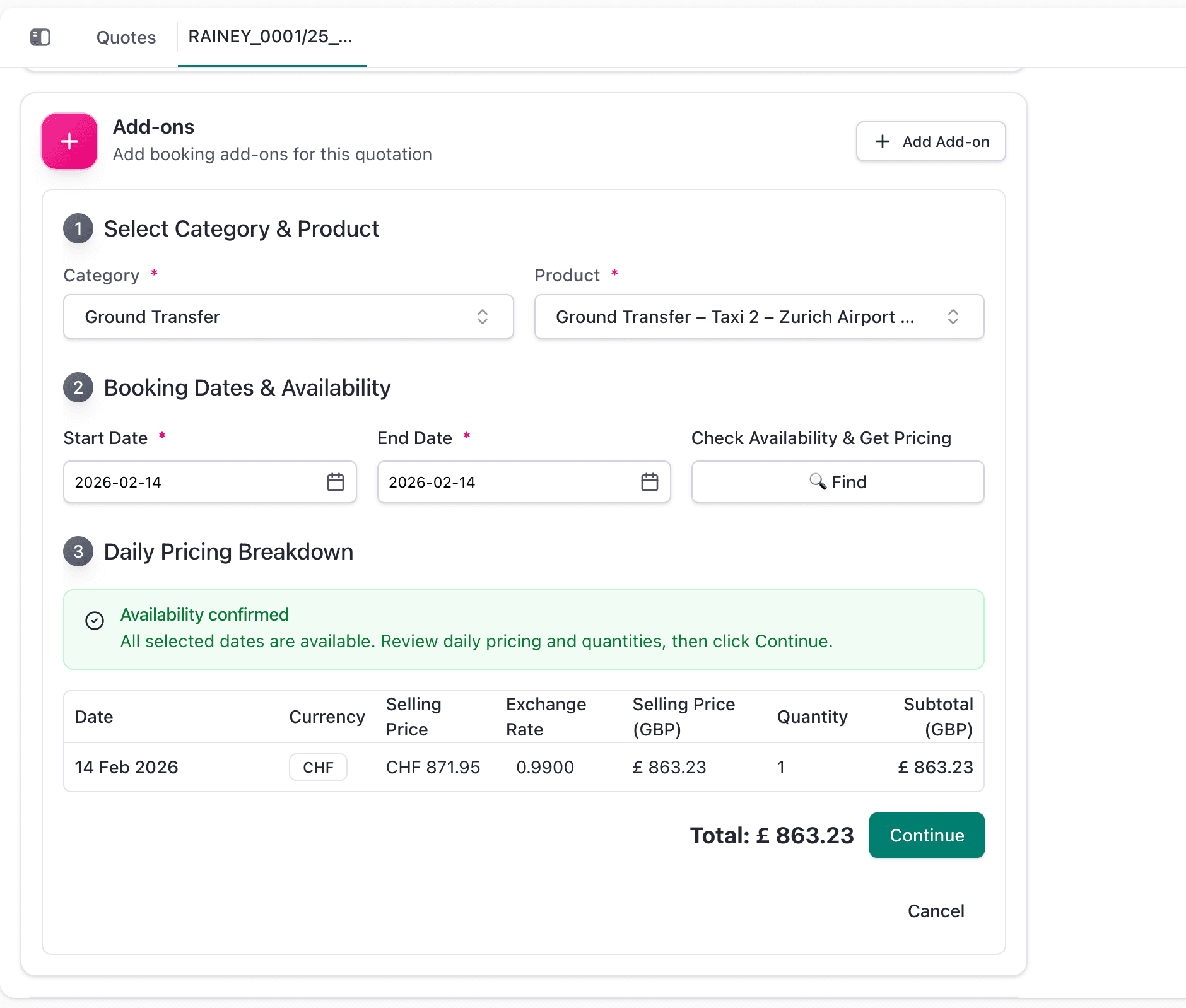
5. Add-ons
- Include services like Ground transfers, Ski passes, Staff cost, or other add-ons.
- Add all types of category add ons for both the package level and destination level along with its margin.
6. Administrative Charge
- Set a per-person Admin fee (e.g. £450 per traveller).
- Automatically multiplied by number of travellers.
- Shows base amount, VAT, and total.
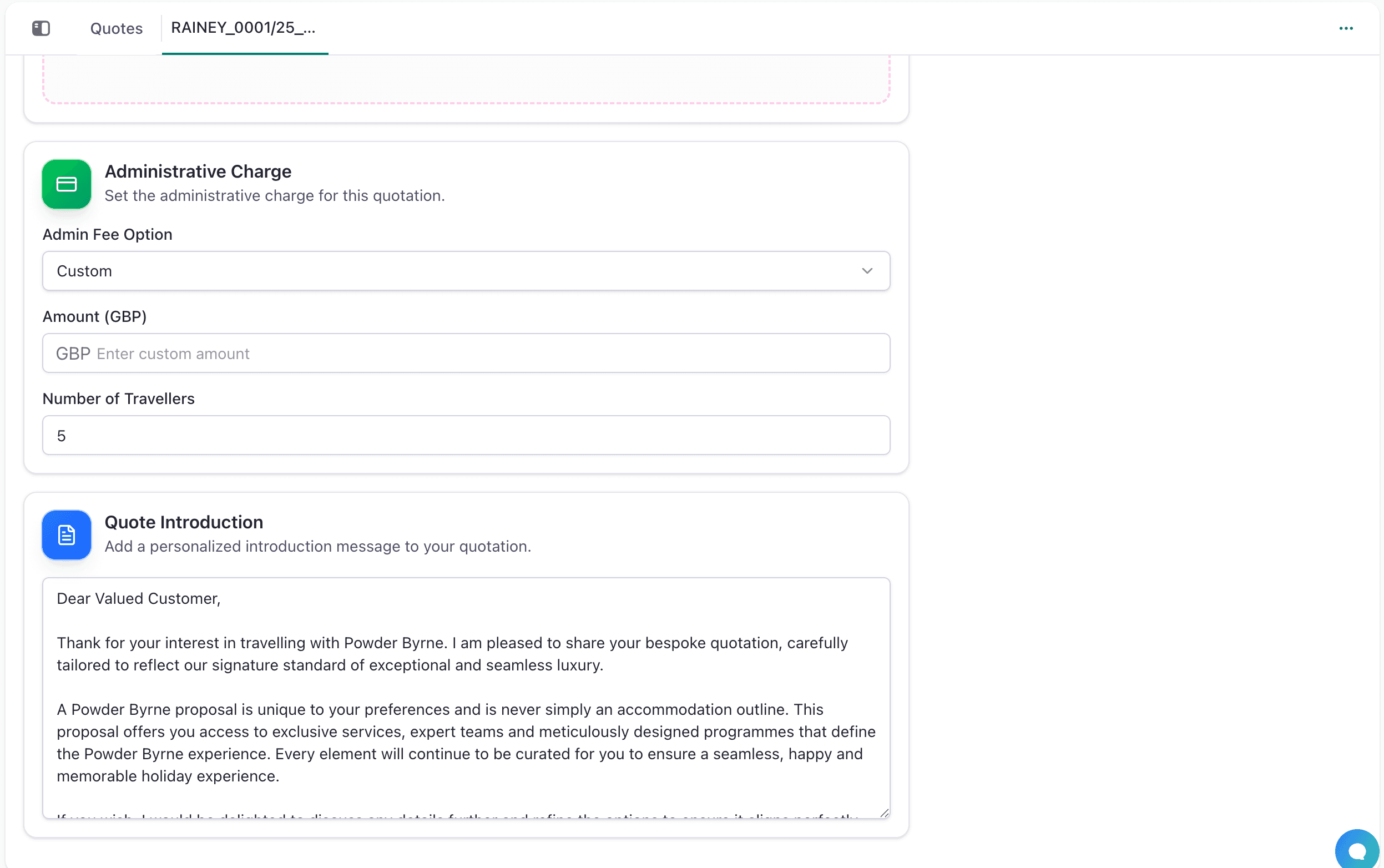
7. Quote Introduction
- Add a personalized welcome message to the quotation.
- Appears at the top of the sent quote.
Pricing breakdown
The quotation shows:
- Package Price: Accommodation + services (if using a package).
- Accommodation Price: Hotel room charges.
- Service Price: Any additional paid services.
- Administrative Charge: Per-traveller fee × number of travellers.
- Grand Total: Sum of all above.
Header actions and status
Top right controls:
- View Opportunity: Link to the related opportunity record.
- Draft: Current status of the quotation. Click to change status (Draft, Sent, Accepted, Declined).
- Download PDF: Generate and download the quotation as a PDF document.
- Send: Open the send dialog to email the quotation to the client or colleagues. Shows delivery options and confirmation.
Quotation management sections
Total Holiday Price Summary
Displays a clear breakdown of all costs:
- Package Price: Accommodation + services (if using a package).
- Accommodation Price: Hotel room charges.
- Service Price: Any additional paid services.
- Administrative Charge: Per-traveller fee × number of travellers.
- Total Holiday Price: Sum of package + accommodation + service prices.
- Grand Total: Final amount including administrative charge.
Sales Notes
- Add internal notes about the quotation, communication history, or client preferences.
- Sort by "Recent First" to see latest updates.
- Click "+ Add Note" to create a new note.
- Useful for tracking client feedback and deal progress.
Public Quote Link
- Click "Generate Public URL" to create a secure, shareable link.
- Clients can view the quotation without logging in.
- Useful for presenting quotes via email or messaging.
- Requirements: The quote weblink will only generate if the admin charge is set and all travellers are assigned to beds.
Invoice Management
Create invoices for billing:
- Select a Xero Account (e.g., Sales revenue account) for accounting purposes.
- Choose Payment Method (e.g., Online Payment, Bank Transfer).
- Click Create Invoice to generate a billing invoice linked to this quotation.
- View and manage Created Invoices section below to track issued invoices.
- Link to view invoices directly in Xero for payment tracking.