Opportunities
Opportunities represent potential deals in your sales pipeline. They are the core element of deal management in Flinkk One, allowing you to track prospects through various stages of the sales process until they result in a won or lost deal.
What are Opportunities?
Opportunities in Flinkk One store comprehensive information about potential deals including:
- Deal Information: Opportunity name, description, value, and currency
- Pipeline Status: Current stage, probability, and expected close date
- Relationships: Associated company, contacts, quotations, and documents
- Timeline: All activities, communications, and deal history
- Custom Fields: Additional information specific to your business
Key Features
Deal Tracking
- Track deals through multiple pipeline stages
- View deal value and probability at a glance
- Monitor expected close dates
- Link related quotations and documents
Activity Management
- Track all communications and interactions
- View complete deal timeline
- Attach files and documents
- Log notes and internal comments
Pipeline Visibility
- Multiple view options (table, kanban)
- Filter and search by any criteria
- Bulk actions for team efficiency
- Real-time collaboration
Accessing Opportunities
Navigate to Sales > Opportunities from the sidebar menu. You can access:
- All Opportunities - View all opportunities in the system
- My Opportunities - View only opportunities assigned to you
Opportunity Views
Table View
The default table view displays opportunities in a sortable, filterable list with columns including:
- Opportunity Name
- Stage
- Value
- Expected Close Date
- Assigned To
- Company
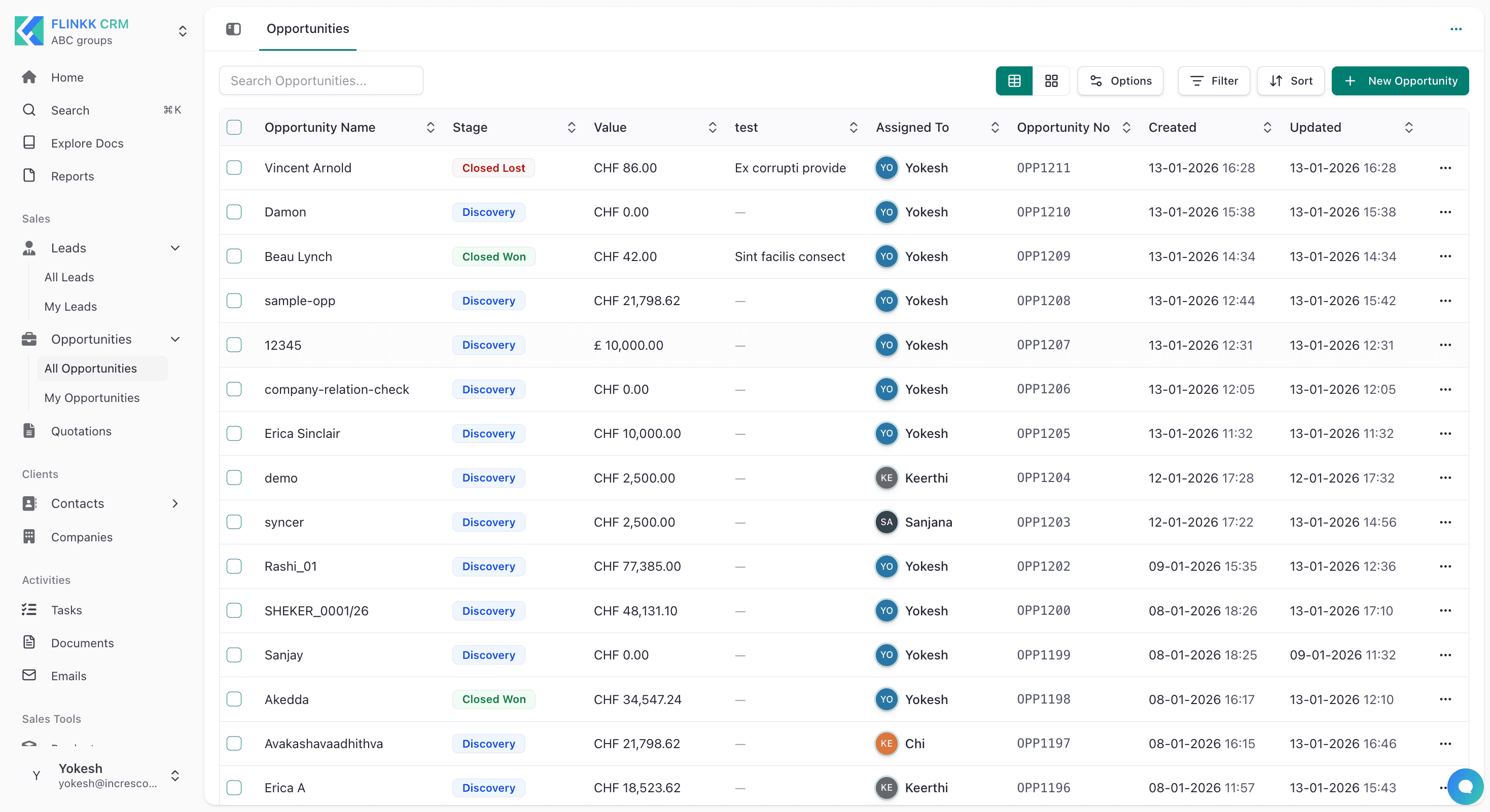
You can customize the table view columns in Admin Center > Module Customization > Opportunities. Configure which fields display, set column order, and manage visibility for your team.
You can search, filter, sort, and select multiple opportunities for bulk actions.
Pipeline/Kanban View
Visualize opportunities as cards across sales stages to see deal flow through your pipeline:
- Discovery - Initial conversation and qualification
- Qualified - Sales-qualified lead ready for proposal
- Proposal Sent - Quote sent to customer
- Negotiation - Discussing terms and pricing
- Contract Sent - Final agreement pending signature
- Closed Won - Deal successfully closed
- Closed Lost - Deal did not close
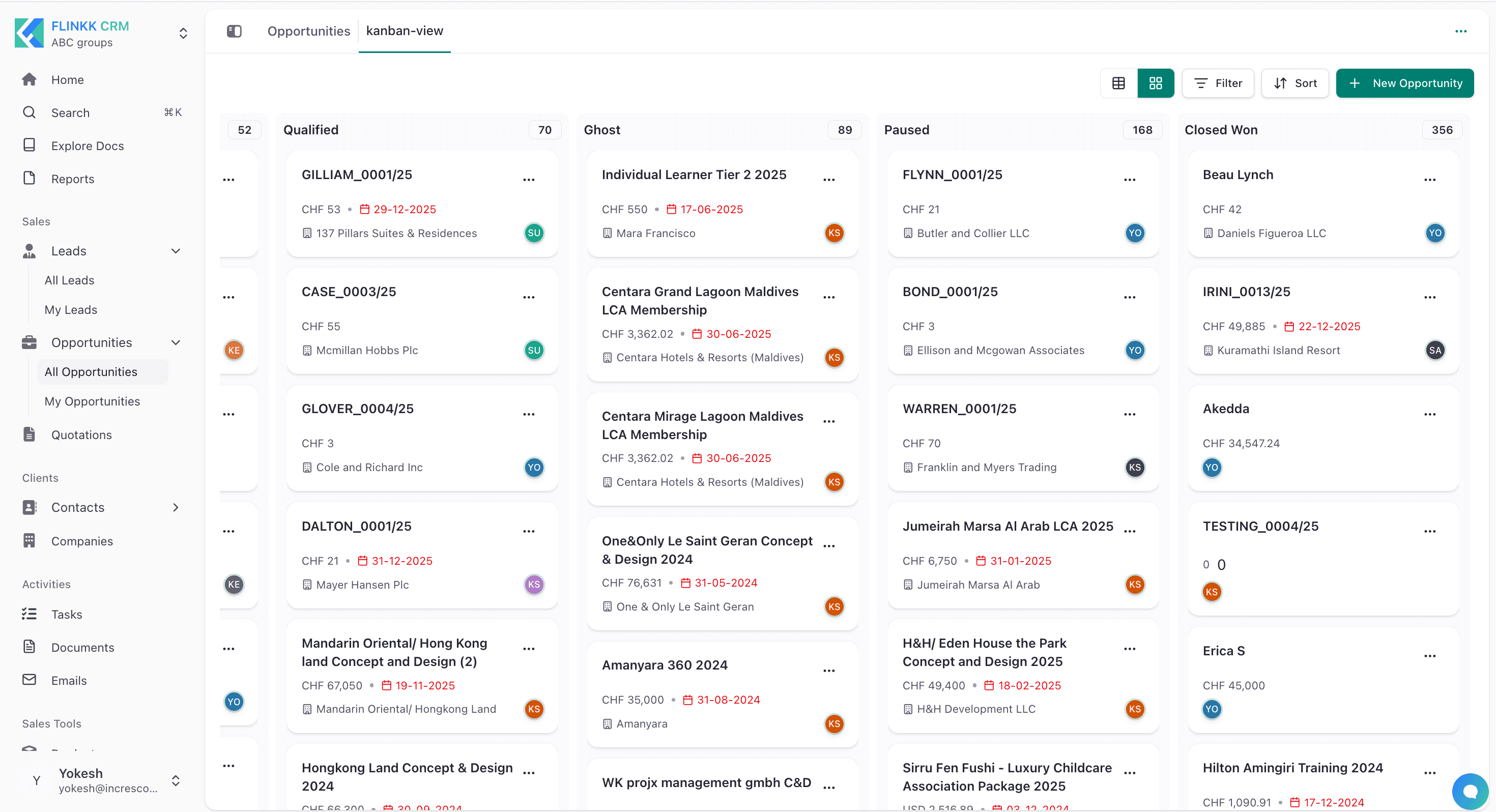
Customize Opportunity Stages: Configure your sales pipeline stages in Admin Center > Module Customization > Opportunities > Opportunity Stages. You can customize stages to match your unique sales process, rename them, or add custom stages that fit your workflow.
Customize Opportunity Status: Manage opportunity statuses separately from stages in Admin Center > Module Customization > Opportunities > Opportunity Status. Use statuses like "Active", "On Hold", or "Pending" to provide additional context alongside your pipeline stages.
Drag cards between columns to update opportunity stages.
Creating an Opportunity
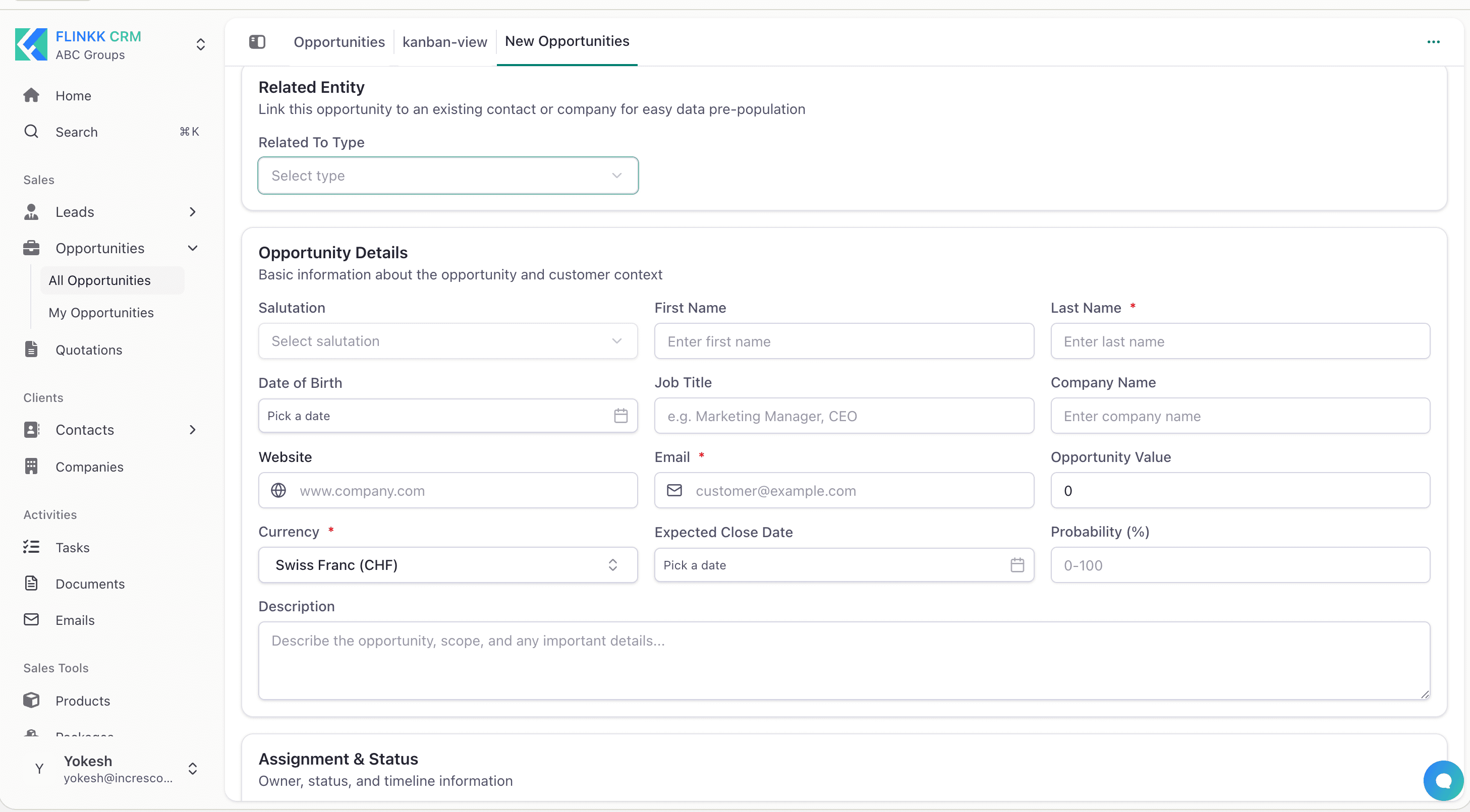
- Click + New Opportunity to open the creation form
- Fill in basic information:
- Opportunity Name (required) - Descriptive deal name
- Company - Associated organization
- Contact - Primary contact person
- Value - Expected deal value
- Currency - Deal currency (CHF, USD, EUR, etc.)
- Stage - Initial pipeline stage
- Probability - Likelihood of closing (0-100%)
- Expected Close Date - Target closure date
- Add optional details like description and source
- Click Save to create the opportunity
Managing Opportunities
Editing
- Click on an opportunity to open its detail view
- Click Edit to update fields
- Click Save to apply changes
Updating Stage
Update opportunity stage in three ways:
- Click the stage badge in table view and select new stage
- Drag card to different column in pipeline view
- Update stage field in detail view and save
Bulk Actions
Select multiple opportunities using checkboxes to:
- Assign to a team member
- Update custom fields
- Export data
- Delete opportunities
Opportunity Details
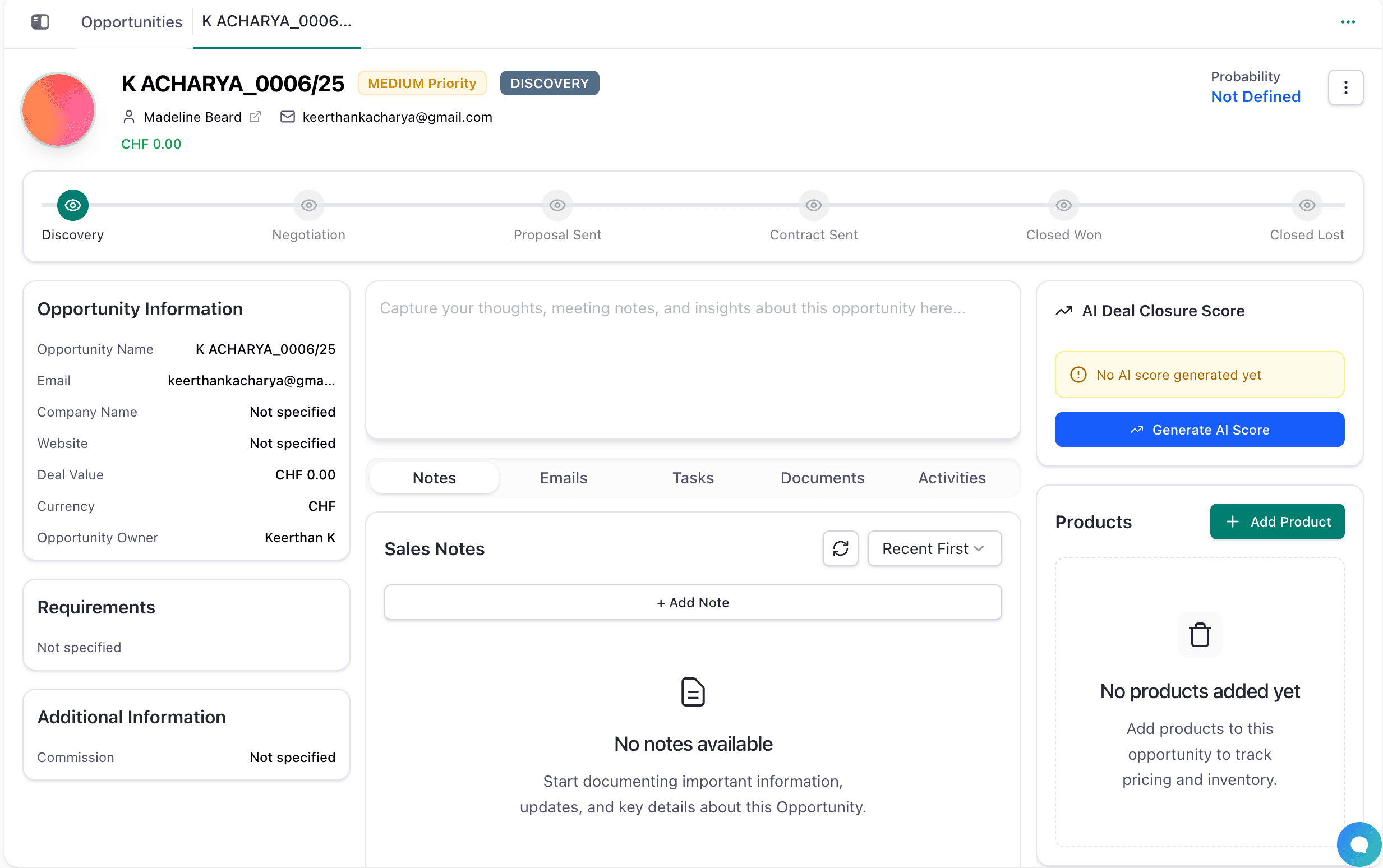
When you click on an opportunity, you'll see a detailed profile with the following sections:
Opportunity Header
At the top of the detail view:
- Opportunity Name: The deal title with ID
- Priority Badge: Visual indicator for priority level (MEDIUM, HIGH, LOW)
- Stage Badge: Current pipeline stage (DISCOVERY, PROPOSAL SENT, etc.)
- Associated Contact: Primary contact person and email
- Deal Value: Opportunity value in selected currency
- Probability: Likelihood of closing (shows as "Not Defined" if not set)
Pipeline Stage Progress
A visual timeline showing all available stages in your pipeline. The current stage is highlighted, and you can click on any stage button to move the opportunity forward or backward in the pipeline.
Opportunity Information (Left Sidebar)
Key details about the deal:
- Opportunity Name: Deal title
- Email: Contact email
- Company Name: Associated company
- Website: Company website
- Deal Value: Numeric value of the opportunity
- Currency: Currency type (CHF, USD, EUR, etc.)
- Opportunity Owner: Team member responsible for the deal
- Requirements: Deal requirements or conditions
- Additional Information: Custom fields like Commission
Main Content Area (Center)
Tabs for managing deal information:
- Notes Tab: Add and view sales notes and internal comments. Includes a text area for capturing thoughts and meeting notes
- Emails Tab: View all email communications related to the opportunity
- Tasks Tab: Track action items and follow-ups
- Documents Tab: Manage attached proposals, contracts, and supporting files
- Activities Tab: View timeline of all interactions and changes
Right Sidebar
Additional deal management tools:
- AI Deal Closure Score: AI-powered analysis of deal closure likelihood (click "Generate AI Score" to calculate)
- Products Section: Products associated with this opportunity. Click "Add Product" to include items with pricing and inventory tracking
- Packages Section: Bundle products and services together. Click "Add Package" to create service packages
- Quote Section: View and manage quotations created for this opportunity. Shows quote number, status, value, and date. Click "Create Quote" to generate a new quotation
Managing Opportunity Details
To edit opportunity information:
- Click on any field in the Opportunity Information section to edit it
- Update the details as needed
- Changes are saved automatically
- All edits are tracked in the Activity tab for full deal transparency
Converting from Lead
When a lead is qualified, convert it to an opportunity:
- Open the lead detail view
- Click Convert to Opportunity
- Fill in additional opportunity details
- Lead information transfers automatically to the new opportunity
Creating Quotations
From an opportunity, create quotations for customers:
- Open the opportunity detail view
- Click Create Quote
- Select products or services to include
- The quotation links automatically to the opportunity
- Track quotation status from the opportunity view
Best Practices
- Keep stages updated as negotiations progress
- Set realistic close dates based on discussions
- Document all communications in notes and activities
- Link all relevant contacts from the company
- Adjust probability based on deal progression
- Hold regular pipeline reviews with your team