Quote Templates
What is it?
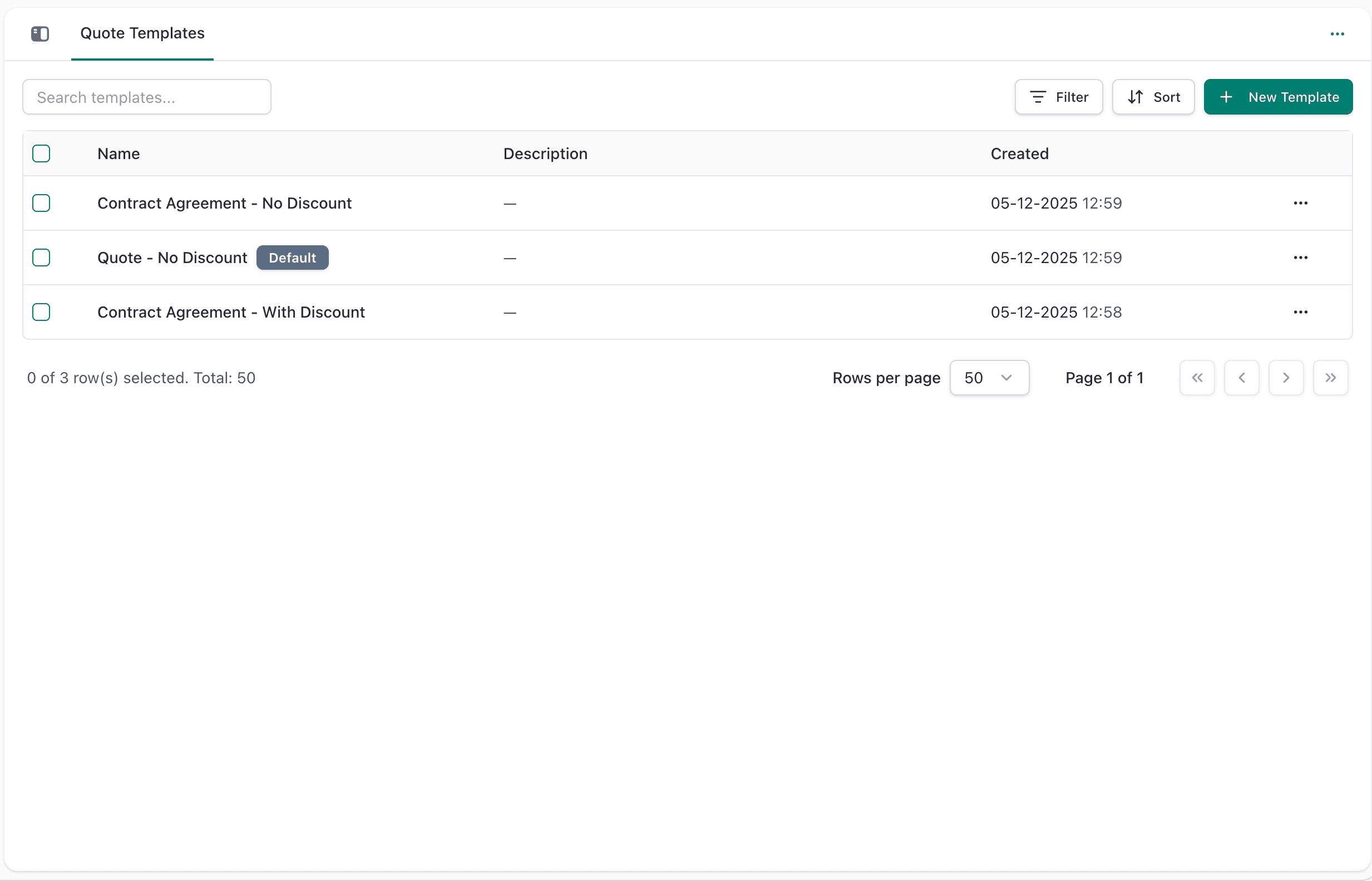
Quote Templates control how your quotes look when you send them to customers. They're like a design template that determines the layout, colors, and sections of your quote PDF.
Instead of creating each quote from scratch, you design a template once and reuse it for all your quotes.
Why use Quote Templates?
- Look Professional - Your quotes match your company branding
- Save Time - Generate beautiful PDFs automatically
- Stay Consistent - All quotes have the same professional layout
- Flexibility - Create different templates for different quote types
What's in a Quote Template?
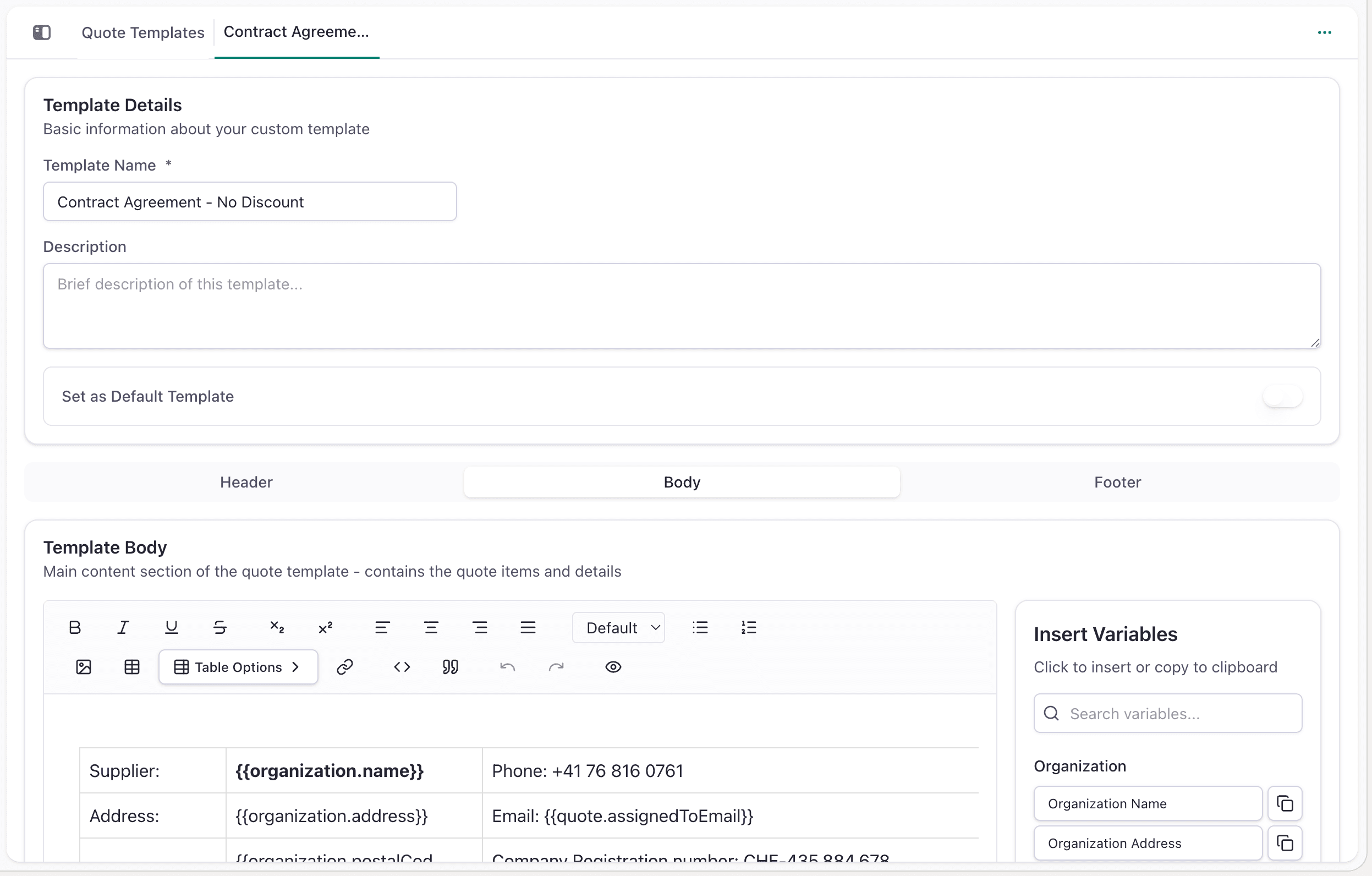
Each quote template consists of three main sections: Header, Body, and Footer.
Header
- Your company logo and name
Body
- Customer Info - Who the quote is for
- Line Items - What products/services you're quoting
- Pricing - Quantities, unit prices, and totals
- Totals - Subtotal, tax, discount, grand total
Footer
- Payment Terms - When payment is due and how to pay
- Terms & Conditions - Your legal terms
How to Get Started
Step 1: Go to Admin Center
Click Admin Center → Quote Templates
Step 2: Create a New Template
Click New Template and:
- Give it a name (e.g., "Standard Quote", "Enterprise Contract")
- Add your company logo
- Design the layout sections
- Add payment terms and conditions
Step 3: Use Your Template
When you create a quotation:
- Open the quotation record
- Click Generate Quote or Preview
- Select your template
- The PDF is generated with all your quote data
Tips & Tricks
Do This:
- Include your company logo prominently
- Use consistent branding across all templates
- Make payment terms very clear
- Include a valid-until date
- Leave space for signatures (if you need them)
Don't Do This:
- Use cluttered or confusing layouts
- Hide important information like the total amount
- Use low-quality logos or graphics
- Forget to include payment instructions
Common Questions
Q: Can I have multiple quote templates? A: Yes! Create different templates for different quote types (standard quotes, proposals, contracts, etc.).
Q: Can I change a template after using it? A: Yes. Changes to a template apply to future quotes only. Previously generated quotes keep their original design.
Q: Can I add my company logo? A: Yes. Most templates have a header area where you can upload your logo.
Q: What if I need a custom template? A: Contact support if you need a template design that's not available by default.
Q: Can I include custom text or legal terms? A: Yes. Most templates let you add custom terms and conditions in the footer.