Integrations
What is it?
Integrations allow you to connect your Flinkk CRM with external tools and services. They help you extend functionality, automate workflows, and sync data between different platforms without manual intervention.
Why use Integrations?
- Extend Functionality - Add powerful features from other tools to your CRM
- Automate Workflows - Reduce manual data entry and repetitive tasks
- Unified Data - Keep information synchronized across all platforms
- Improve Efficiency - Use your favorite tools without switching between systems
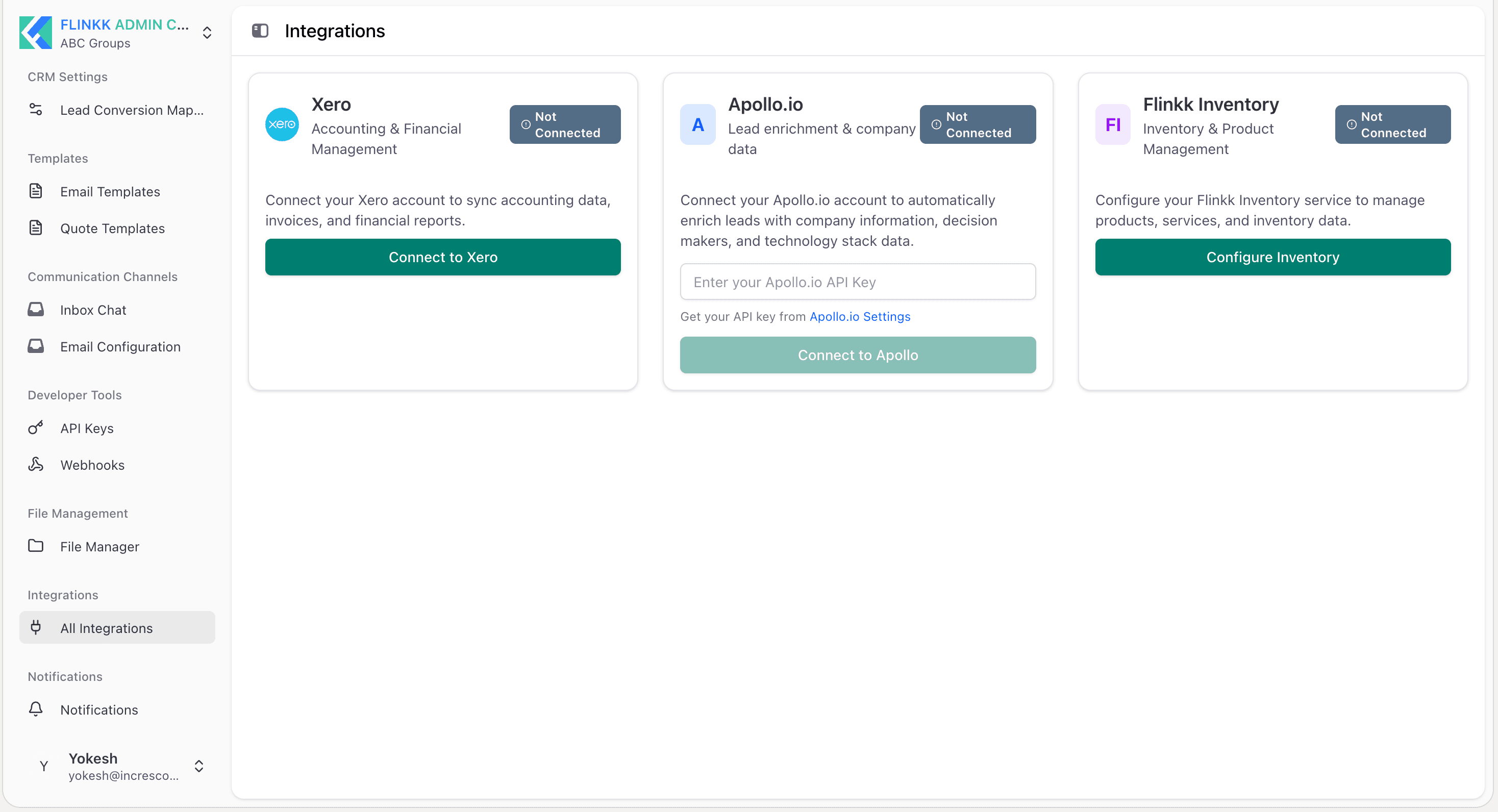
Available Integrations
Your Flinkk CRM currently supports the following integrations:
Xero - Accounting & Financial Management
Connects your Xero accounting software to sync financial data with your CRM. This integration is currently set up on your system.
Features:
- Sync company and contact information between Xero and CRM
- Link invoices and quotes to financial records
- Track payment status and financial metrics
- Automatic currency and tax handling
Connection Status: Connected
Apollo.io - Lead Enrichment & Company Data
Automatically enriches leads with company information, decision makers, and technology stack data. This helps you make better decisions when prioritizing leads.
Features:
- Enrich leads with company details and backgrounds
- Identify decision makers and key contacts
- Get technology stack information
- Access research and verification data
How to Connect: Enter your Apollo.io API key from your account settings
Flinkk Inventory - Inventory & Product Management
Manages your product catalog, inventory levels, and service packages directly within your CRM.
Features:
- Manage product catalog and services
- Track inventory levels in real-time
- Create and manage service packages
- Link inventory to quotes and orders
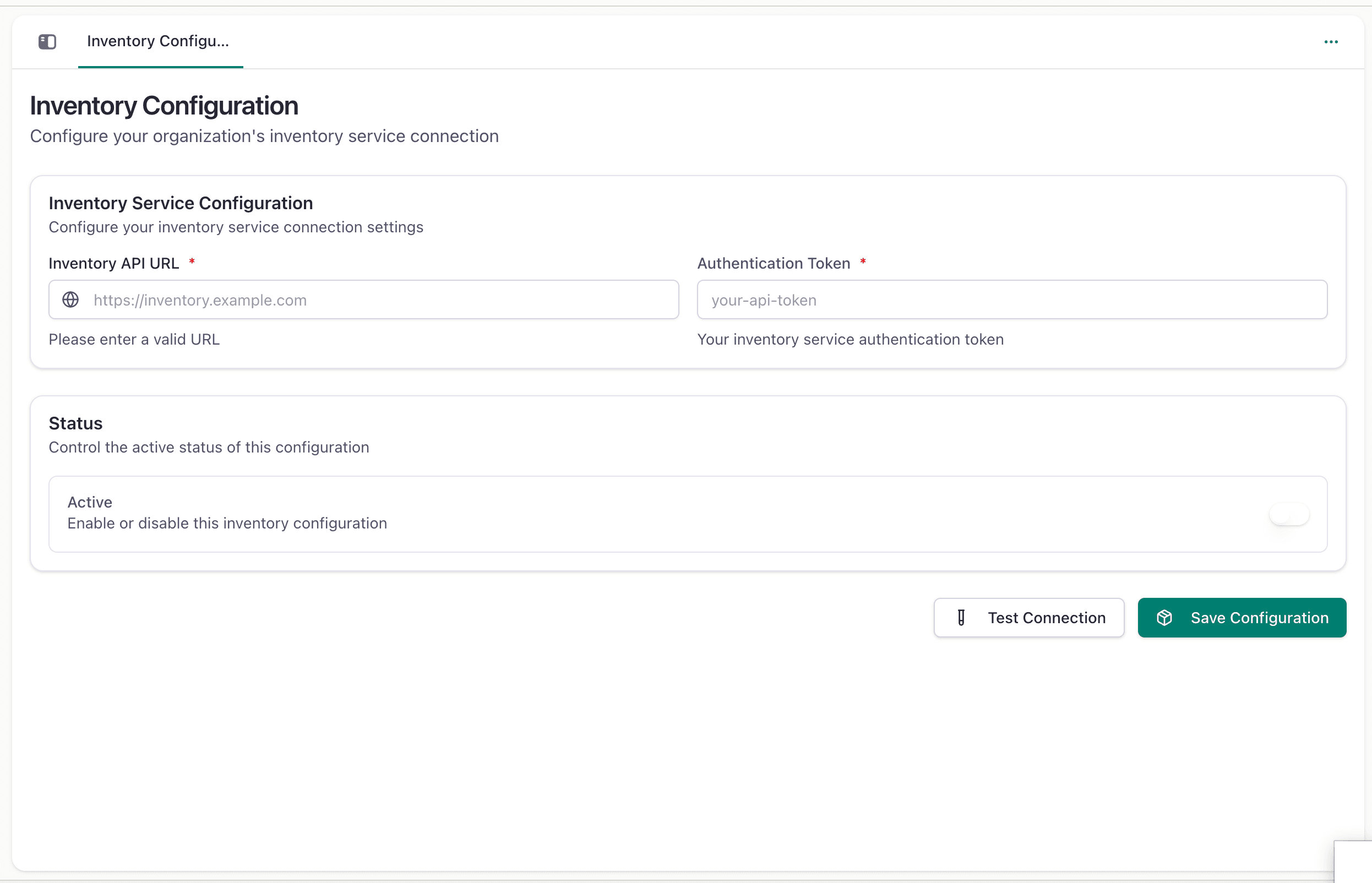
Connection Type: Service Configuration
How to Get Started
Step 1: Access the Integrations Page
Go to Admin Center and select All Integrations. You will see all available integrations with their current connection status.
Step 2: Choose Your Integration
Select the integration you want to set up. Each integration card displays:
- What the integration does
- Current connection status
- Required credentials or API keys
- Configuration options
Step 3: Configure the Integration
Different integrations use different authentication methods.
For API Key Based Integrations (Apollo.io):
- Click the Connect button
- Enter your API key from the service settings
- Click Connect to establish the connection
- Status will change to Connected
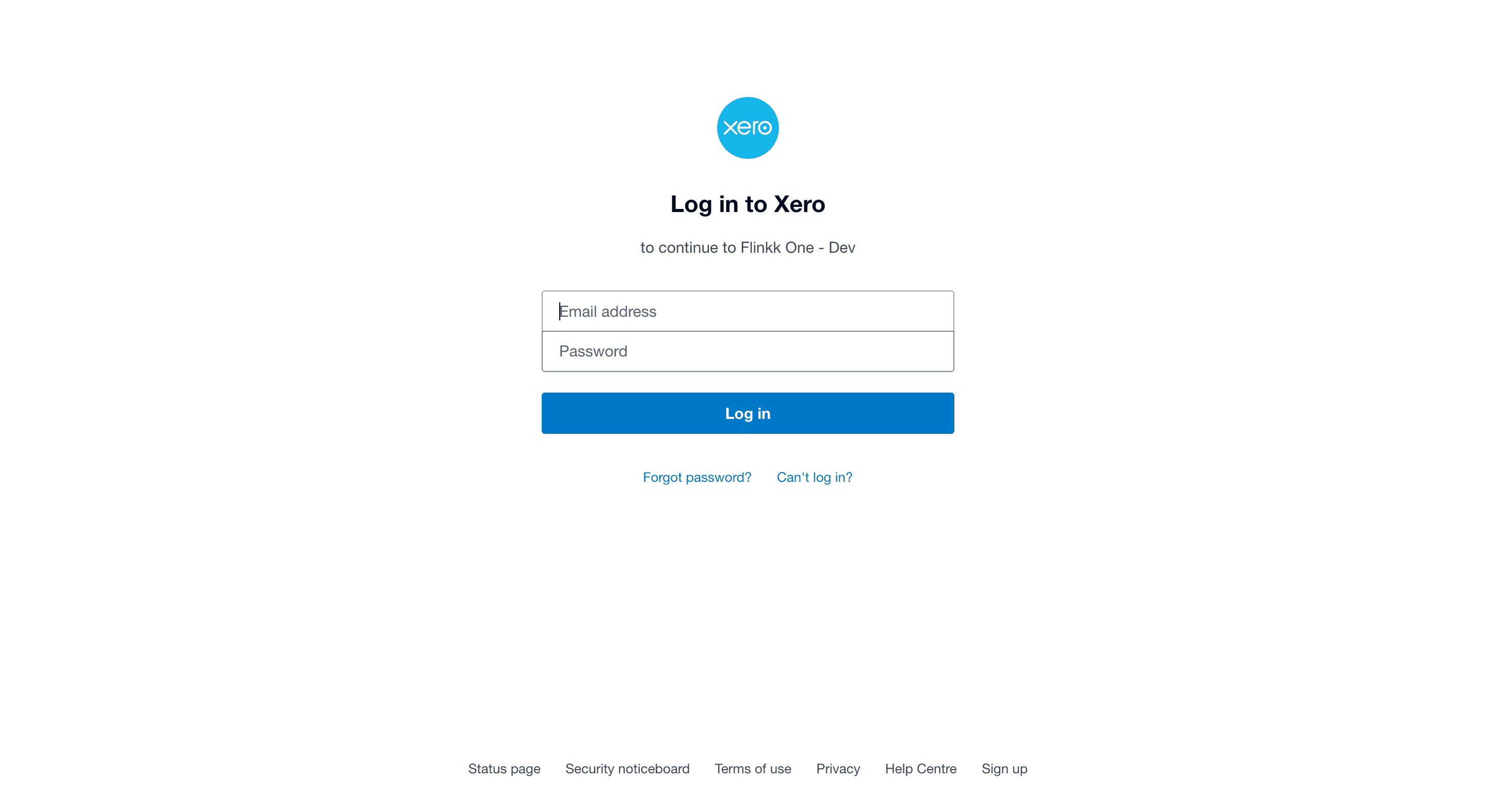
For OAuth Integrations (Xero):
- Click Open [Service Name]
- You will be redirected to the service login page
- Authenticate with your account
- Authorize the connection
- You will be returned to Flinkk with the connection established
For Service Configuration (Flinkk Inventory):
- Click Configure
- Set up your service parameters
- Complete the setup wizard
- Save your configuration
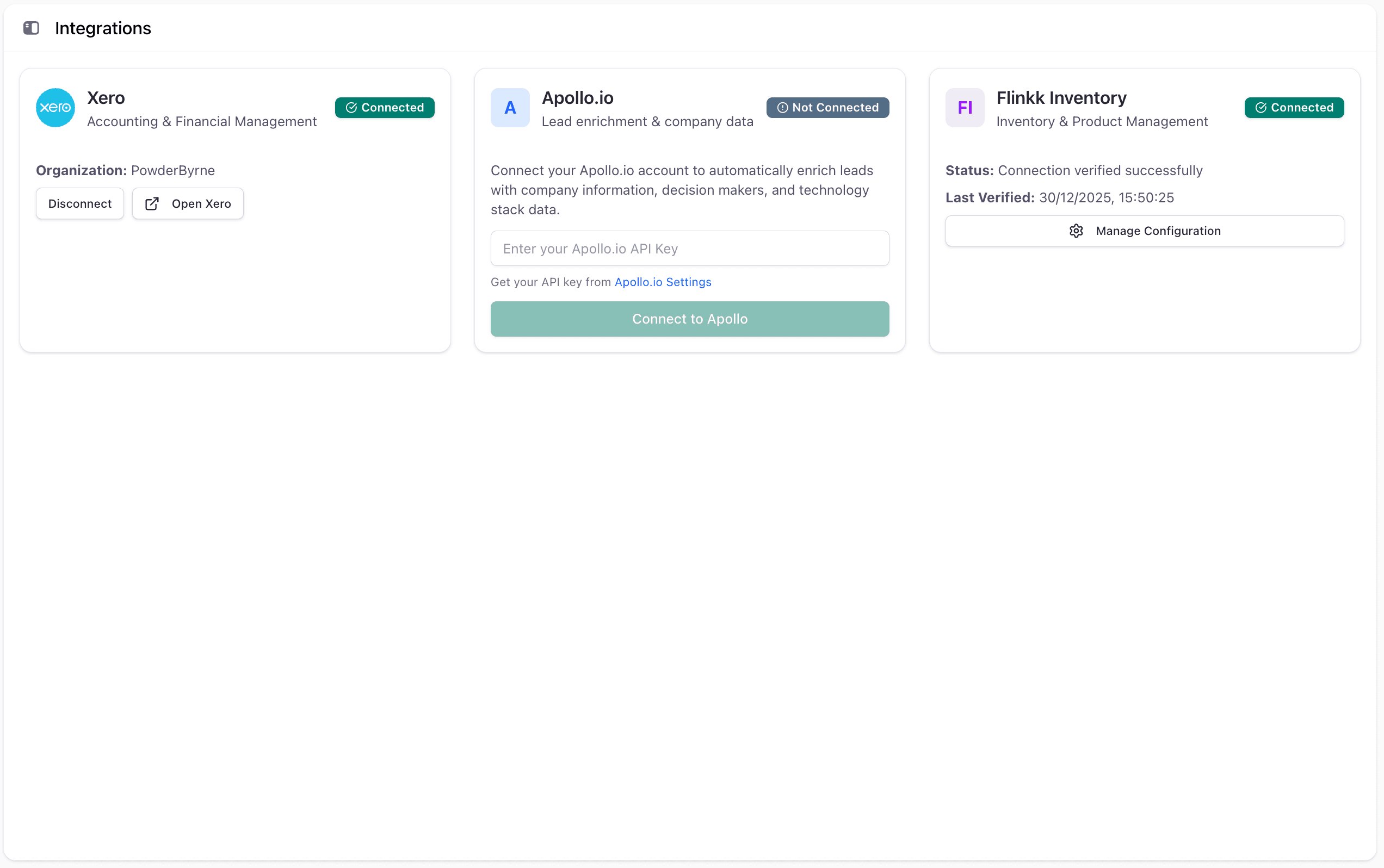
Step 4: Verify Your Connection
After setup is complete:
- Check the integration status (should show Connected)
- View any organization or account information
- Test the integration to ensure data is syncing properly
Best Practices
Do This:
- Connect integrations that are relevant to your business processes
- Keep API keys and credentials secure in your account settings
- Regularly verify that integrations remain connected
- Test integrations after setup to ensure data is syncing
- Document which integrations you're using and why
Don't Do This:
- Share API keys or credentials with unauthorized users
- Leave unused integrations connected indefinitely
- Use personal email addresses for integration accounts
- Forget to update credentials when they expire
- Ignore disconnection warnings or error messages
Common Questions
Q: What integrations are available? A: Currently available are Xero (accounting), Apollo.io (lead enrichment), and Flinkk Inventory (inventory management). Additional integrations are planned for future releases.
Q: How do I find my API key? A: Each integration has a link to where you can retrieve your API key. For Apollo.io, visit your Apollo Settings page. Check the integration setup page for specific instructions.
Q: Can I disconnect an integration? A: Yes. Go to the integration card and click the Disconnect button. This stops the integration but preserves all previously synced data.
Q: Will disconnecting an integration delete my data? A: No. Disconnecting stops the connection but keeps all data that was previously synced to your CRM.
Q: Can I reconnect after disconnecting? A: Yes. You can reconnect anytime by returning to the integration and clicking Connect with your credentials.
Q: What should I do if an integration fails? A: Check your credentials and API keys are correct. Verify you have the necessary permissions in the external service. If the issue persists, contact support with the integration name and error details.