Quotations
Quotations in Flinkk One are automatically generated when opportunities progress to the proposal stage, enabling you to create professional pricing documents for your clients quickly and efficiently.
What are Quotations?
Quotations are formal pricing documents that outline the products, services, and costs associated with an opportunity. In Flinkk One, quotations are:
- Automatically generated from opportunities
- Fully customizable with your branding and terms
- Version-controlled to track changes and updates
- Trackable to see when clients view or accept them
Key Features
Automated Generation
- Quotations are created automatically when an create quote is clicked from opportunity
- All opportunity details (contact, company requirements) are pre-filled
- Product and package information is pulled from your catalog
Professional Templates
- Use pre-designed templates that match your brand
- Include company logo, colors, and custom headers/footers
- Add terms and conditions, payment terms, and validity periods
Pricing Flexibility
- Line-item pricing with quantities and descriptions
- Support for discounts, taxes, and multiple currencies
- Automatic calculation of subtotals and totals
- Optional pricing tiers (Standard, Premium, Enterprise)
Client Interaction
- Send quotations via email with tracking
- Know when clients view your quotation
- Enable online acceptance and e-signatures
- Receive notifications on client actions
Creating a Quotation
Quotations are automatically created when an opportunity reaches the proposal stage, but you can also manually create them:
-
Open the Opportunity
- Navigate to the opportunity that needs a quotation
- Ensure all required information is complete (contact, company, requirements)
-
Quotation tab
- In the bottom right there will be button "Create Quote" for creating the quotes
- Form here a quotation will be automatically generated
-
Review and Customize
- The quotation will appear in the Quotations module
- Review the pre-filled information
- Add or modify line items as needed
Managing Quotations
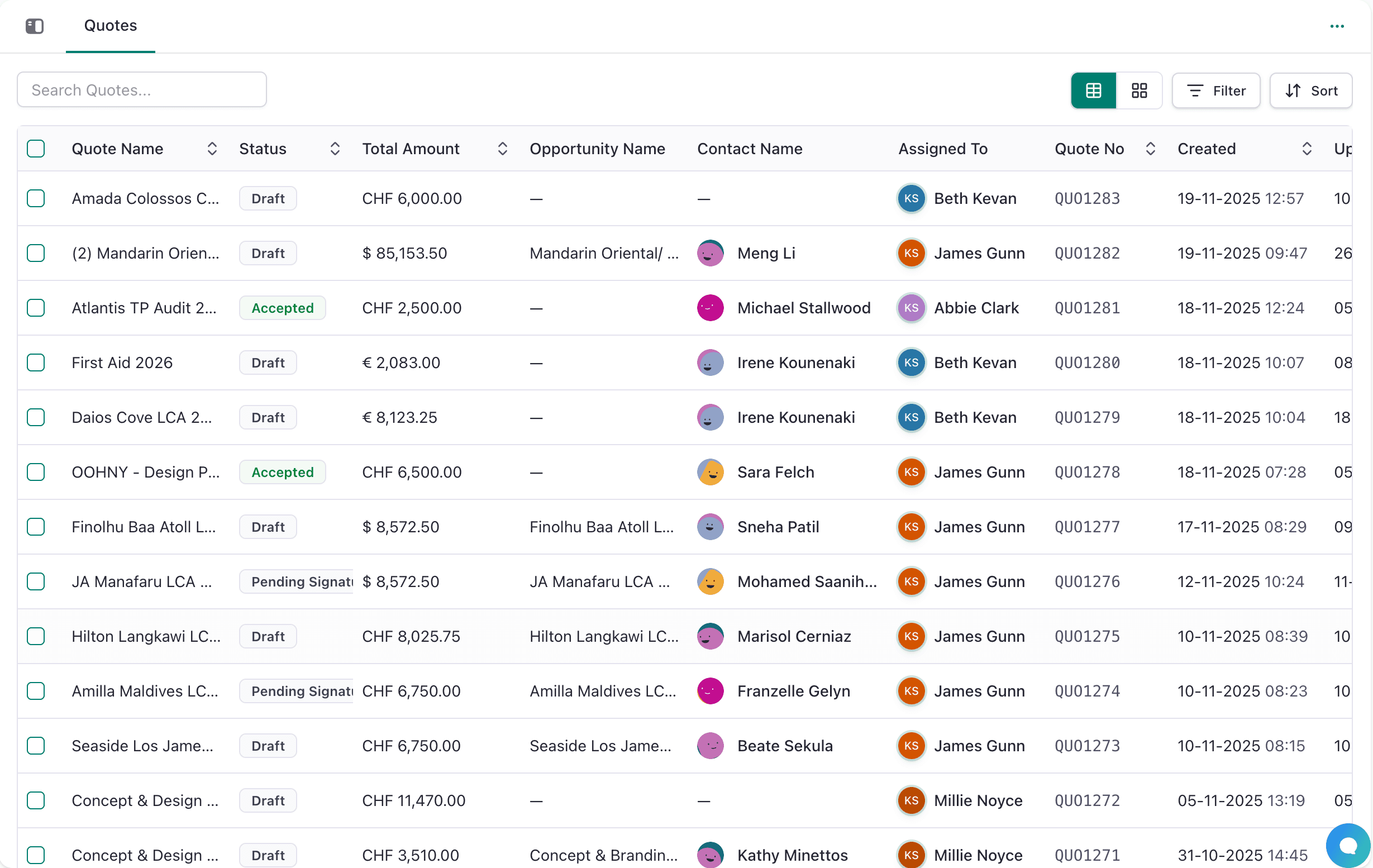
Quotation List View
The quotations list shows all your quotations with key information:
- Quotation Number: Unique identifier (e.g., QT-0001/25)
- Client Name: Contact and company
- Total Value: Quotation amount
- Status: Draft, In Review, Sent, Approved, Rejected
- Valid Until: Expiration date
- Created Date: When the quotation was created
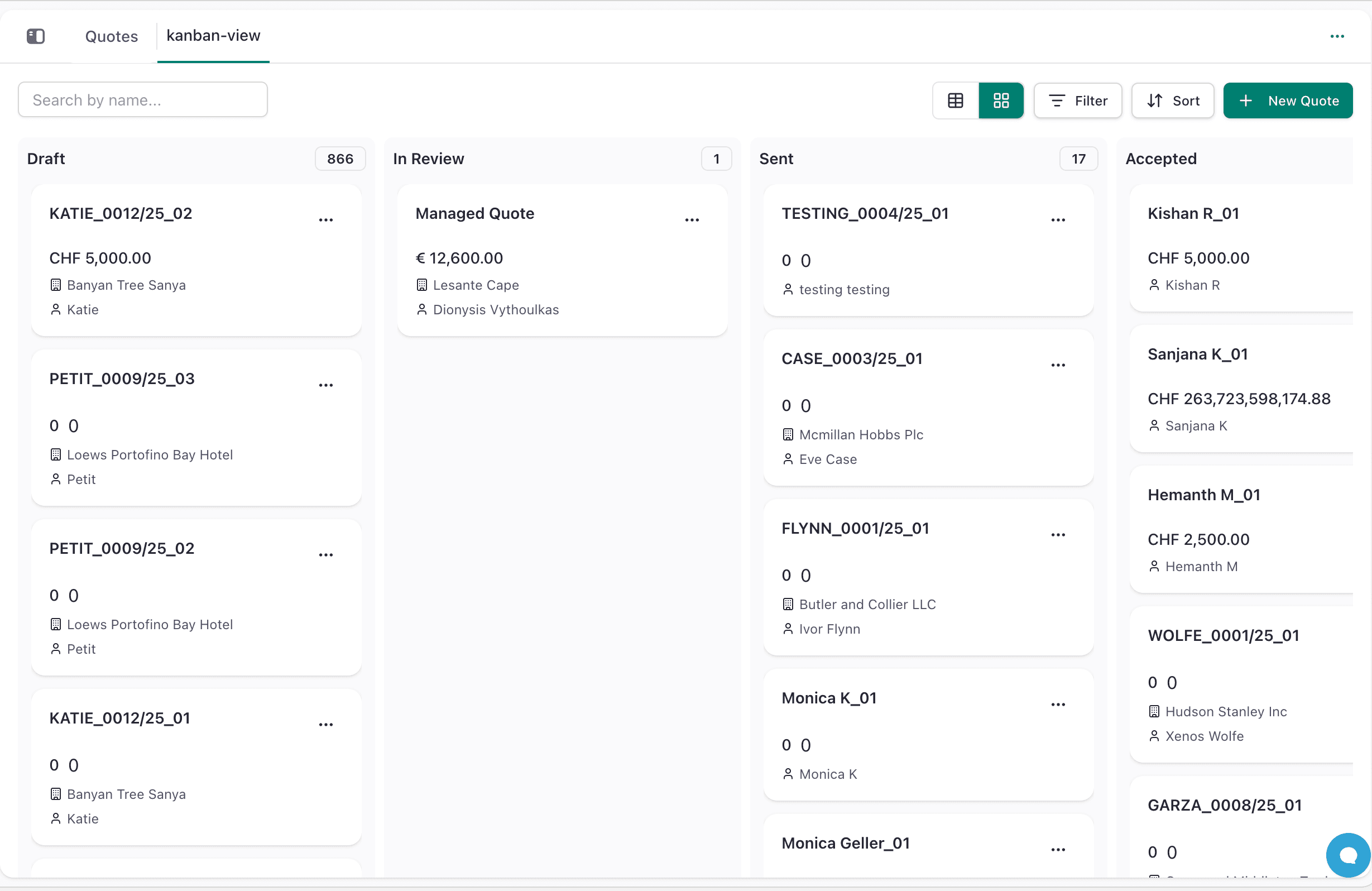
Quotation Kanban View
The kanban view provides a visual board organized by quotation status, allowing you to quickly see the progress of your quotations and drag quotations between different statuses.
Filtering and Sorting
- Filter by status (Draft, In Review, Sent, Approved, Rejected)
- Filter by date range
- Filter by assigned owner
- Sort by value, date, or client name
- Use search to find specific quotations
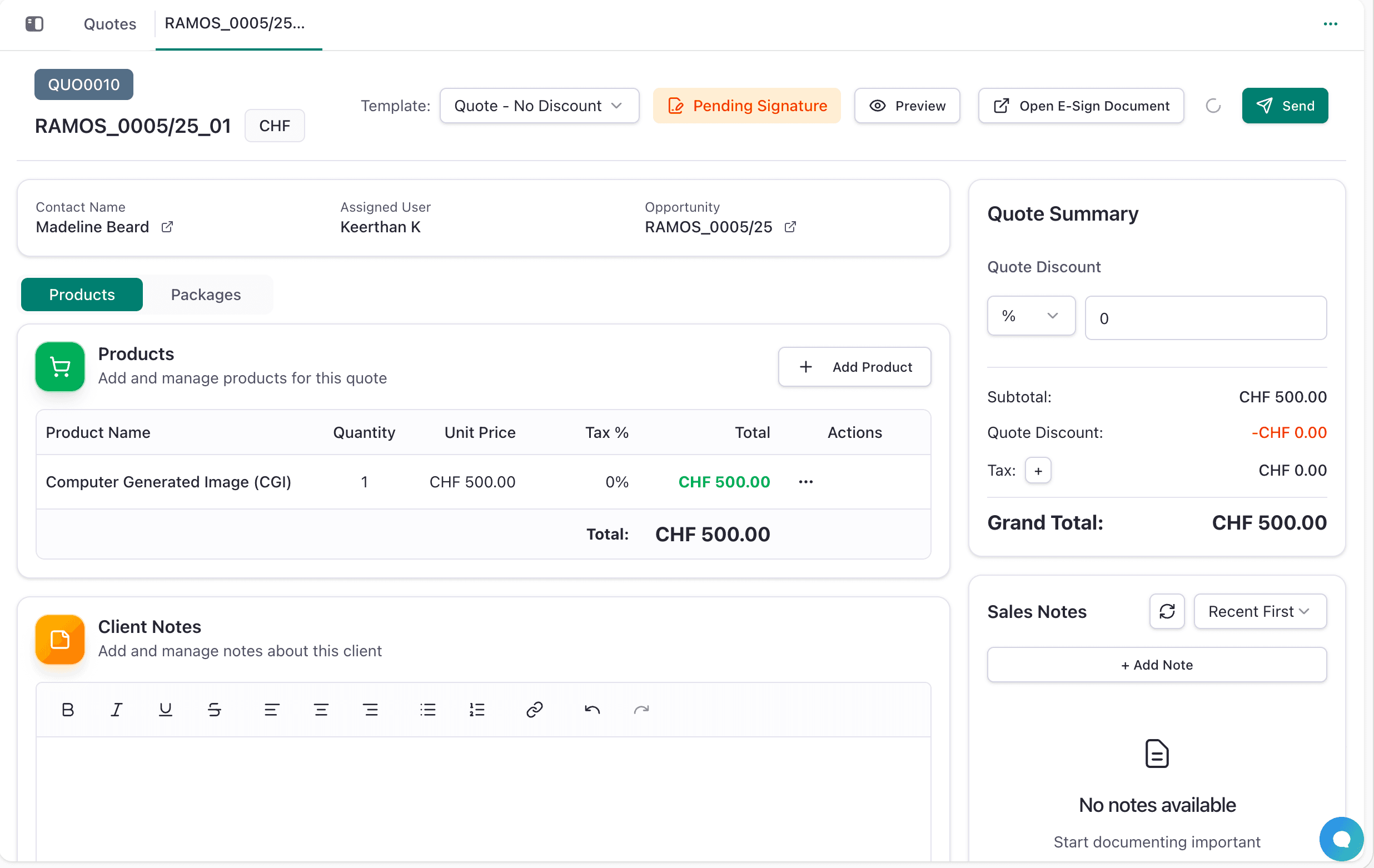
Quotation Details
When you open a quotation, you'll see comprehensive information organized in tabs:
-
Info Tab
- Client Information: Contact details and company
- Quotation Details: Number, date, valid until, terms
- Line Items: Products, services, quantities, and pricing
- Totals: Subtotal, taxes, discounts, and final total
-
Activity Tab
- Timeline of all actions on the quotation
- Changes and updates history
- Email sent records
- Client viewing activity
-
Communications Tab
- All emails sent regarding this quotation
- Client responses and feedback
- Internal notes and discussions
-
Documents Tab
- PDF versions of the quotation
- Signed acceptance documents
- Related contracts and agreements
- Supporting materials and attachments
Quotation Status Workflow
Quotations follow a standard lifecycle:
- Draft: Being prepared, not yet sent
- In Review: Under internal review before sending
- Sent: Delivered to the client
- Approved: Client has approved the quotation
- Rejected: Client has declined
Status Actions
- From Draft: Move to In Review or continue editing
- From In Review: Send to client or revise
- From Sent: Follow up, send reminder, or revise
- From Approved: Convert to contract or order
- From Rejected: Create new version or mark lost
Adding Products & Packages to Quotes
Products and packages are automatically pulled from the opportunity into the quote. If needed, you can add additional products or modify the existing ones in the quote.
Adding Products
- Open or Create Quote
- Create a quote from an opportunity
- Or open an existing quote in draft status
- Products and packages from the opportunity will automatically appear in the quote
-
Add Product Click the "+ Add Product" button to add additional products beyond those from the opportunity
- Search and select a product from your catalog
- Product information (name, description, pricing) automatically loads
-
Customize Product Line
- Quantity: Set the number of units
- Unit Price: Adjust if needed (default from product catalog)
- Tax %: Apply applicable tax rate
- Manual: Toggle to manually override pricing
-
Save Product to Quote
- Product is added to the quote with calculated totals
- Add multiple products by repeating steps
Adding Packages
Packages allow bundling multiple pre-configured products together.
-
Click "+ Add Package"
- In the Packages section of the quote
- Select package from available list
-
Package Details
- Package name displayed
- Combined pricing calculated automatically
-
Customize Pricing
- Adjust package-level pricing if needed
- Apply discounts or tax rates
- Same controls as individual products
Quote Summary
- Subtotal: Sum of all products and packages
- Discount: Apply percentage or fixed amount discount
- Tax: Add tax percentage on total or individual items
- Grand Total: Final amount for client
Sending Quotations
Email Delivery
-
Open the Quotation
- Click on the quotation you want to send
-
Click Send
- Review the email template
- Customize the message if needed
-
Track Delivery
- Receive confirmation when sent
- Get notified when client opens the email
- Track when they view the quotation
PDF Export
- Download quotations as professional PDF documents
- Include all branding and formatting
- Print or share via other channels
- Attach to emails outside Flinkk One
Integration with Other Modules
Opportunities
- Quotations are linked to opportunities
- Update opportunity stage when quotation is approved
- View quotations from the opportunity detail page
Contacts & Companies
- Client information auto-fills from contact records
- Update contact preferences based on quotation interactions
- Track quotation history on company records
Products & Packages
- Pull pricing and descriptions from product catalog
- Maintain consistency across all quotations
- Update products based on quotation feedback
E-Signature
- Enable clients to sign quotations digitally within Flinkk One
- Secure and legally binding acceptance
- Signed documents are stored in the Documents tab
- Real-time notifications when quotations are signed
Xero Integration
- Xero integration is configured in the Admin Center
- Convert approved quotations to invoices in Xero
- Sync invoice status back to Flinkk One for tracking
- Automatic line item and tax calculations
- Streamline financial workflows without manual data entry