Members
Manage your team members by adding, editing, and organizing users in your Flinkk One organization.
Overview
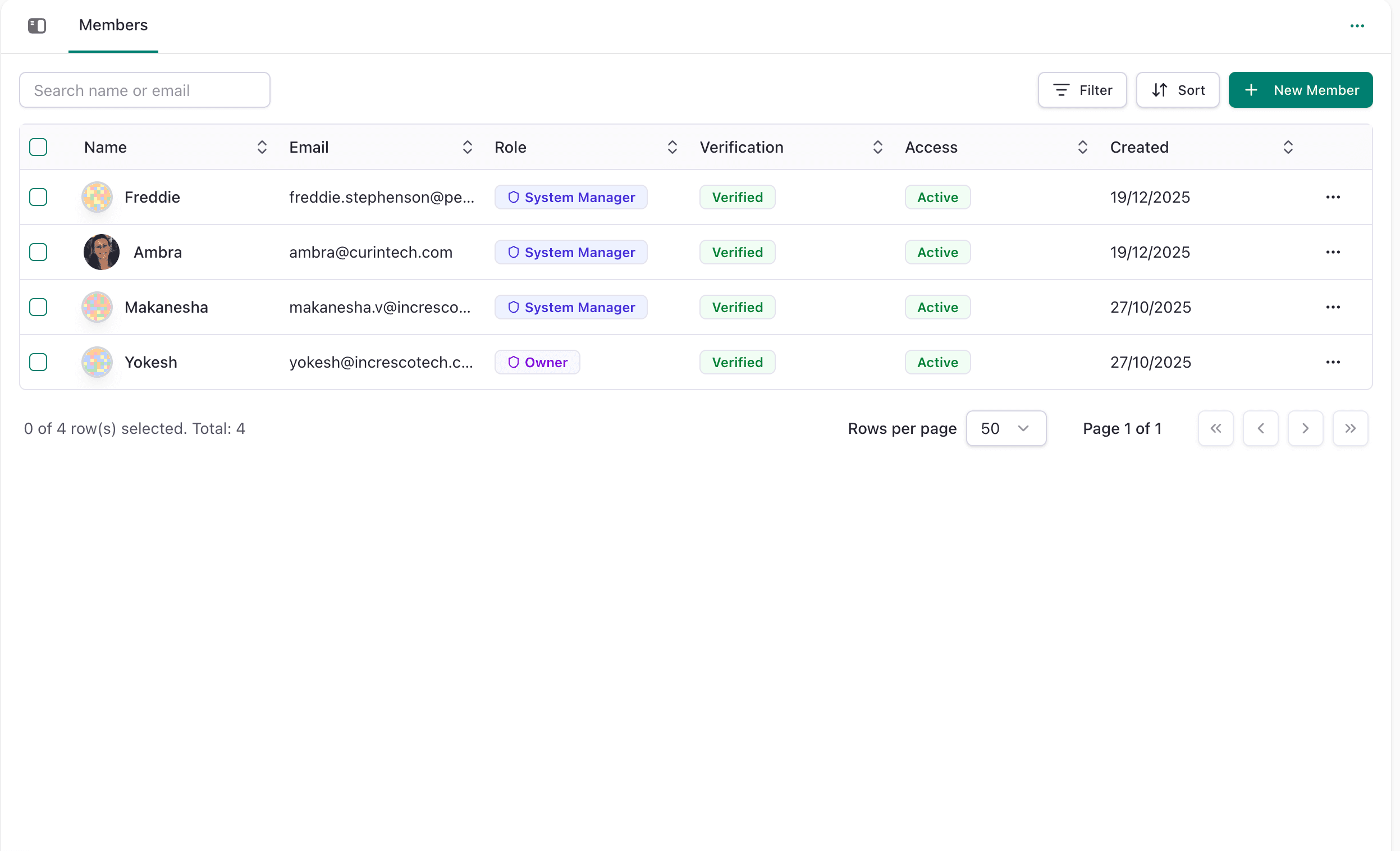
The Members section in Admin Center allows you to:
- Add new team members to your organization
- Assign roles and permissions to each member
- Manage member status (Active/Inactive)
- Search and filter members
Access location: Admin Center → Member Management → Members
Adding New Members
When you add a new member to the system:
- Click "New Member" button
- Enter member email and name
- Select a role for the member
- Save
- An invitation email is automatically sent to the member
- Once the member accepts the invite and completes onboarding, they become an Active User in the CRM
Member Information
Each member has the following details:
- Name - Full name of the team member
- Email - Email address used for login
- Role - Permission set that determines what features they can access
- Verification Status - Whether email is verified
- Access Status - Active (can log in) or Inactive (cannot access)
Managing Members
Edit Member
Click on any member to update their information or change their role.
Deactivate Member
Change the status from Active to Inactive. The member loses access to the system, but their account data is preserved.
Reactivate Member
Change the status from Inactive to Active to restore their access.
Member Roles
Each member is assigned a role that determines their permissions:
- Owner - Complete system access
- System Manager - System settings and user management
- Sales Agent - Access to leads and opportunities
- Sales Manager - Sales team management and oversight
- Support Agent - Support ticket management
- Support Manager - Support team management
For detailed permission information for each role and module, see Roles & Permissions.
Best Practices
- Verify email addresses before adding members
- Assign the minimum required role for each member's responsibilities
- Deactivate members when they leave instead of deleting accounts
- Review member access regularly